
The Add Program menu now has clearer names and only shows the options that fit the page you're on. Learn how to add client and staff programs, where to find Task Analysis, Duration, Frequency, and Interval, and how to import ESDM and SET programs.
In this article:
- What's new
- 🎥 Watch: Creating Programs With the New Dropdown
- Add a Program from the Library
- Add a Program from a Client's Programs Page
- Add a Program from a Staff Member's Programs Page
- Add Task Analysis, Duration, Frequency, or Interval Targets
- What Stays the Same
- Import ESDM and SET Programs from the Catalog
- Change a Program's Type or Apply a Template
- FAQ
What's new 💙
The updated menu helps you build programs in the right place and use your organization's templates more consistently.
- 🏷️ Clearer names: "Skill Acquisition (Client)" is now Client Program, and "Skill Acquisition (Staff)" is now Staff Program.
- 📂 Organized menus: In the Library, all creation options for client and staff programs are grouped in one place.
- 🎯 Options that match your page: On a client's page you only see client options. On a staff member's page you only see staff options.
- 🧹 A tidier dropdown: Task Analysis, Duration, Frequency, and Interval are now added as target types inside a Client or Staff Program.
- 📚 ESDM and SET in the catalog: These programs are now available in the catalog for every organization.
📌 Your existing programs aren't changing. Your programs, data, graphs, and permissions all stay the same. Only the way you create new programs is different.
Watch 🎥: Creating Programs with the new dropdown menu
Add a Program from the Library
- Select [Library] from the navigation menu.
- Click [Add Program].
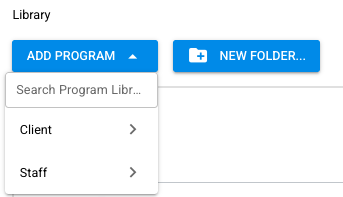
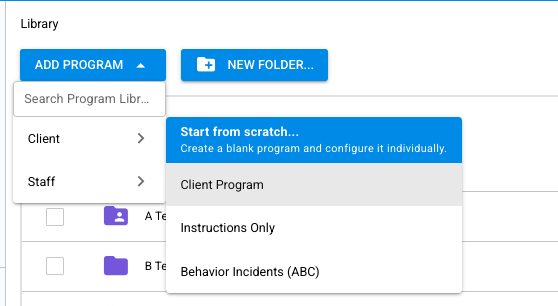
- Hover over [Client Program] or [Staff Program] to open its menu.
- Select the type of program you want to create:
- [Client Program] or [Staff Program]
- [Instructions Only]
- [Behavior Incidents (ABC)]
Add a Program from a Client's Programs Page
- Select [Clients] from the navigation menu.
- Select the client.
- Click [Programs].
- Click [Add Program].
- Select a client program type or one of your organization's client templates.
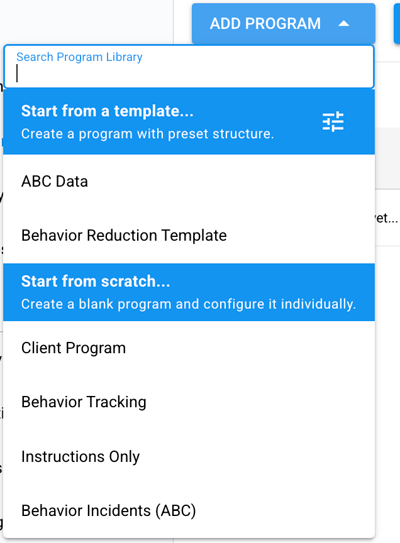
💡 On a client's Programs page, you only see client program types and client templates. [Instructions Only] and [Behavior Incidents (ABC)] are also available here.
Add a Program from a Staff Member's Programs Page
- Select [Staff] from the navigation menu.
- Select the staff member.
- Click [Programs].
- Click [Add Program].
- Select a staff program type or one of your organization's staff templates.
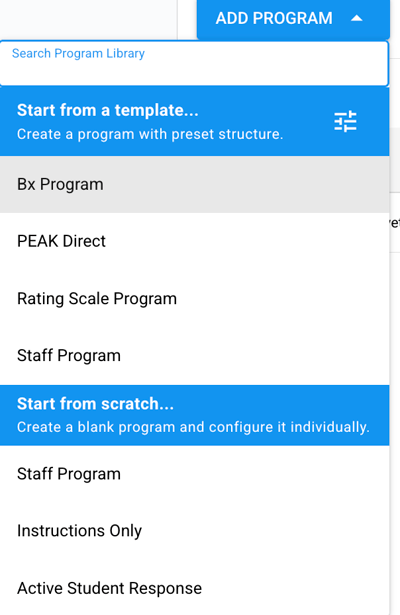
💡 On a staff member's Programs page, you only see staff program types and staff templates. [Instructions Only] and [Active Student Response] are also available here.
Add Task Analysis, Duration, Frequency, or Interval Targets
Task Analysis, Duration, Frequency, and Interval no longer appear as options in the [Add Program] menu. You can add them as targets inside a Client Program.
- Open a Client Program, or create a new one.
- Click [Add Target].
- Select [Task Analysis], [Duration], [Frequency], or [Interval] as the target type.
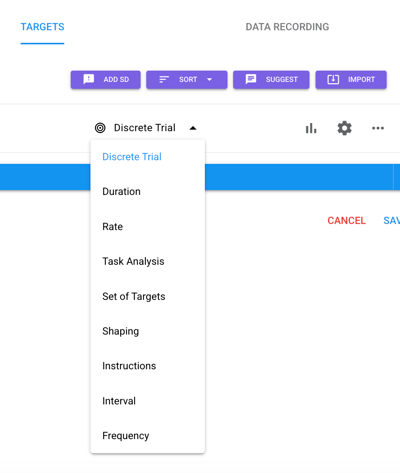
Click HERE to learn how to add and set up target settings in a Program.
What Stays the Same
- 📌 Existing programs: Any Task Analysis, Duration, Frequency, or Interval programs you already have stay in your Library and on client pages. You can keep running and editing them as you do today.
- 📊 Data and graphs: No programs are migrated or converted. Your data and graphs aren't affected.
- 🔐 Permissions: The people who can create programs and templates are the same as before.
Import ESDM and SET Programs from the Catalog
Early Start Denver Model (ESDM) and Sufficient Exemplar Training (SET) programs are now in the catalog for every organization. They work the same way as before. The only change is where you find them.
- Select [Library] from the navigation menu.
- Click [Catalog].
- Find the ESDM or SET program you want.
- Click [Import] to add it to your Library.
- Open the program in your Library.
- Click [Save as Template] if you want to reuse it.
Click HERE to learn how to create and manage program templates.
Change a Program's Type or Apply a Template
The menu for changing an existing program's type now matches the [Add Program] menu, so you see the same options in the same places.
When you apply a template to an existing program:
- ✅ You'll see a confirmation before the template is applied, so nothing changes by accident.
- 🛡️ If the program and the template share a data field, the text you already entered in that field is kept.
💡 Example: You wrote "Aggression, including kicking and biting" in a Behavior field. You then apply a behavior reduction template that has its own Behavior field. Your text stays in place.
FAQ
| Question | Answer |
|---|---|
| Will my existing Task Analysis, Duration, Frequency, or Interval programs change? | No. They stay where they are, and you can keep running and editing them as usual. |
| Is any of my data being migrated or converted? | No. Your data and graphs aren't affected. |
| Why don't I see staff templates on a client's page? | The [Add Program] menu only shows options that fit the page you're on. Go to a staff member's Programs page or your Library to see staff options. |
| Where did ESDM and SET go? | They're in the catalog. Import them into your Library, then save them as templates if you want to reuse them. |
| Did permissions change? | No. The people who can create programs and templates are the same as before. |