
To begin using the AI Note Auditor, please navigate to your organizations [Subscription] page. Select [Edit Subscription]. Under the [Add-Ons] section, toggle on 'AI Note Auditor'.
Click here for the "AI Note Auditor: Getting Started Guide" – outlining frequently asked questions.
- Managing Auditor privileges
- Enabling Auditor's feedback in note templates
- Auditor's feedback in RBT/ BCBA note completion workflow
1. FAQ: Privileges
- How do I set these privileges for a role?
- Navigate to [Settings] >> [Organization] >> [User Privileges] >> [AI Note Auditor].
- Make selections for each privilege and user role as necessary by selecting the corresponding checkbox.
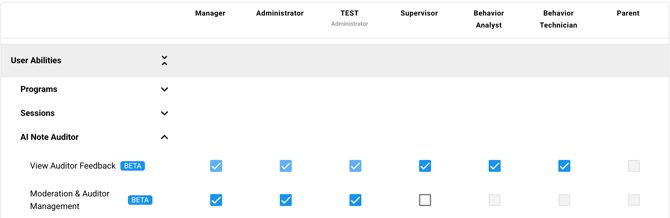
- What does each privilege enable?
- View Auditor Feedback privilege:
- Surfacing auditor's feedback to the clinician during the note completion workflow, pre-signature capture.
- Read section below "2. FAQ: The note template toggle" to learn how to enable this for specific note templates.
- Read section below "2. FAQ: The note template toggle" to learn how to enable this for specific note templates.
- Viewing auditor results (e.g., passed, failed, last audit, outdated etc) in the client's [History] page, [Activities] reporting page, [My Activities] and [Pending Signatures] page
- Only if access to these pages is enabled via [User Privileges].
- Click here to learn about reviewing auditor outcomes.
- Triggering a re-run of the review when the auditors feedback is applied
- Surfacing auditor's feedback to the clinician during the note completion workflow, pre-signature capture.
- Moderation & Auditor Management privilege:
- Providing feedback to the auditor (thumbs up/down).
- Editing, deleting and creating learning moderations.
- Running reviews in the [Activities] reporting page.
- Viewing auditor outcomes in the [Activities] reporting page,
- As well as in client's [History] page and [Pending Signatures] page
- As well as in client's [History] page and [Pending Signatures] page
- View Auditor Feedback privilege:
Selecting "Moderation & Auditor Management" privilege will auto-enable the "View Auditor Feedback" privilege
2. FAQ: The note template toggle
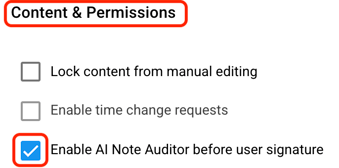
- What does the "Enable AI Note Auditor before user signature" toggle do?
- It surfaces the auditor's feedback in the final step of a clinician's note completion workflow, pre-signature capture.
- Clinicians can apply the auditor's feedback only if the "View Auditor Feedback" privilege is enabled for those roles. See section above.
- Where do I enable the toggle?
- Navigate to [Settings] >> [Templates] >> [Notes].
- Open the note template(s) you want to apply this to. At the bottom of the note template, under the “Content & Permissions” section is the 'Enable AI Note Auditor before user signature' toggle.
3. FAQ: Note completion workflow with auditor feedback
-
What does the note completion workflow look like for RBTs and BCBAs?
When both the "View Auditor Feedback" user privilege and the note template toggle are enabled, clinicians can see the AI Note Auditor's feedback in the final step of note completion, just before signature capture. From there, they can:
- Skip to signature capture and sign the note as is.
- Apply the feedback by making edits directly in the note completion workflow.
- Re-run the review after making edits to check whether the note now passes before signing.
- Where does feedback appear before signature capture?
- In the final step of the note wizard modal, just before the signature field box appears.
- Does this delay note completion/signature capture?
- No, the feedback appears almost immediately. They can choose to skip ahead to complete their note.
- Click here to see how clinicians will be reviewing AI Note Auditor feedback before signing a note.
4. Other related articles
- Click here for a getting started guide to learn the basics of the Auditor.
- Click here to learn about creating, editing or deleting learnings and applying learnings to note templates.
- Click here to learn about & see Auditor results (e.g., passed, failed) in table view.