
In this article:
Guidance for writing effective learnings
To begin using the AI Note Auditor, please navigate to your organizations [Subscription] page. Select [Edit Subscription]. Under the [Add-Ons] section, toggle on 'AI Note Auditor'.
🔐 Access to the [Learnings Moderation] tab is a user privilege.
Click here for the "AI Note Auditor: Getting Started Guide" – outlining frequently asked questions.
📽️ Watch how to create, edit and manage AI Note Auditor learnings.
Steps to Create a Manual Learning
-
- Navigate to [Settings] > [Sessions] > [Learnings Moderation] on the left hand menu.
- Select the [Create a Learning] button at the top of the [Learnings Moderation] page.
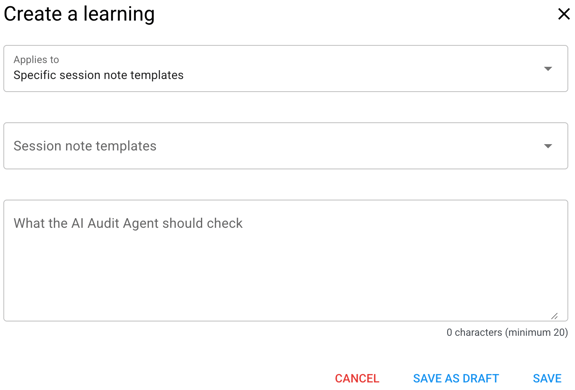
- Complete the fields in the modal, as seen below.
- [Applies to] field drop down menu options: ‘Specific session note templates’ or "All session note templates'
- [Session note templates] field is enabled only if [Applies to] ‘Specific session note templates’. A list of your organization's note templates will appear. Select one, or as many as you want to apply to the new learning.
- [Instructions for AI Note Auditor] field is a text box to input your preferred learning as it relates to your auditing needs.
- Select [Save as Draft] or [Save].
- Repeat steps 1-3 to create new learnings manually.
Note: Selecting [Save] will immediately update the original learning to an 'Active' status, whereas selecting [Save as Draft] keeps the original learning active while storing your edits as a separate 'Draft'. Learn more about statuses below.
Understanding the Learning Moderation Table
The [Learning Moderations] page displays a table of all learnings, along with key details about each one:
|
Column |
Description |
|
Learning |
Full text of the instruction, whether created manually or generated from feedback. |
|
Status |
Indicates whether the learning is Active (currently applied to audits), Draft (not yet applied), or a special state like Active — new draft created (see below). |
|
Source |
Shows how the learning originated — Manual (created directly by a user) or Feedback (generated from thumbs up/down responses during the AI Note Auditor beta, before manual learning creation was available). |
|
Applies to |
Shows whether the learning applies to All templates or a select few. Hover over this field to see the specific templates linked to the learning. |
|
Actions |
Pencil icon (Edit), and trash can icon (Delete) |
Learning Statuses
Each learning will show one of the following statuses:
- Draft – The learning has been created but is not yet active, or a previously created learning was reopened, edited and saved as a draft.
- Active – The learning is live and currently being applied during audit reviews.
- Active, new draft created – A proposed update has been made to an existing active learning, pending internal approval.
Edit Learnings
When a draft exists alongside an active learning, users have the ability to edit either.
- On the same row of the learning you wish to edit, select the pencil icon to open it.
- A modal will appear allowing you to;
- change the field for [Applies to],
- add or remove note templates from the [Select session note templates] field, or
- make edits to the text in the [Instructions for AI Note Auditor] field.
- Choose how to save your change:
- [Save] – immediately updates the original learning and puts the new instructions into the 'Active' status.
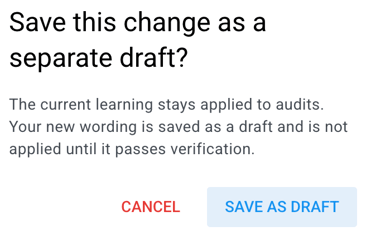
- [Save as Draft] – creates a separate draft with your revisions, while the original learning remains active and continues to be applied to audits.
Working with an Edited Draft
When you select [Save as Draft] to save the revision as a separate draft, the learning moderation table will show two related entries:
- The original learning, now with a status of 'Active, new draft created'
- The new draft version, with a status of 'Draft'.
From here, you can:
- Click the pencil icon on either entry to continue editing.
- When editing the draft, you'll see a side-by-side view of the previous (active) learning and the new draft version, and can choose:
- [Save as Draft] – keeps it as a draft for further internal review.
- [Verify and Replace] – activates the new version and replaces the previous learning, leaving only the one updated, active learning in place.
Delete Learnings
After a learning is either created manually or via feedback, users have the ability to delete each.
- Click the trash can icon to the far right of the learning you want to remove.
- A confirmation modal will appear, asking you to confirm the deletion and noting that deleting the learning will stop it from being applied to future audits.
- Choose an option:
- [Cancel] – closes the modal without deleting anything.
- [Delete] – permanently removes the learning from the table.
Learnings via Feedback
A learning can still be created by rating – thumbs up/ thumbs down – the Auditor's feedback on reviewed notes. Editing or deleting such learnings can be managed as reviewed above.
Click here to learn about using the thumbs up/ thumbs down rating feature.
How Learnings Fit In
Learnings tell the Auditor what to look for. Strictness decides how serious a finding is. Every audit combines three things:
|
Layer |
Who sets it |
What it decides |
|---|---|---|
|
Base rules |
Hi Rasmus |
What every note is checked for, such as medical necessity, session details, service code, goals, interventions and client response |
|
Strictness |
Your organization, on the note template or when running a review |
How serious a finding has to be before a note is flagged or failed |
|
Learnings |
Your organization, for all or specific note templates |
Extra requirements to look for in the note, such as payer-specific rules |
Learnings apply to both audit types. A learning is used in every audit of the note templates it applies to:
- Pre-signature audit: runs in the last step of the clinician's note completion workflow, before the note is signed. Clinicians see every finding. Uses the strictness set on the note template.
- Post-signature audit: a bulk review run from [Reporting] > [Activities] > [Review with AI]. Uses the strictness you pick in the [Review with AI] pop-up.
For consistent results, pick the same strictness on the note template and in the [Review with AI] pop-up.
Use a learning for a documentation requirement your payers or your organization have that the base rules don't cover. For example, naming everyone present, or stating the diagnosis on every note.
Don't use a learning to make the Auditor stricter or more lenient (use strictness for that), or to check anything that isn't written in the note itself.
Guidance on writing effective learnings and using the auditor
- A learning must be at least 20 characters.
- Keep client names and other PHI out of the learning text.
- Write one requirement per learning. A learning that covers several requirements is harder to edit when one of them changes.
- State what the note must contain and how the Auditor can tell. "The note must state where the session took place" is easier to apply than "Make sure location is documented properly."
- Say what to check, not what result to give. "The diagnosis must be documented on every note" works better than "Fail the note if the diagnosis is missing." Your strictness level decides whether a missing item is flagged or failed.
- Don't use a learning to make the Auditor stricter or more lenient. Use the strictness setting on the note template, or in the [Review with AI] pop-up, instead.
- Only ask for what's written in the note. The Auditor reviews the note as the user sees it, including dynamic fields. It can't compare the note against information elsewhere in Hi Rasmus, such as appointments, signatures or client profile details.
- Don't contradict your strictness level or your other learnings. If two learnings pull in different directions, keep only one. Conflicting instructions make results less consistent from one note to the next.
- Keep learnings to what the note writer can fix. When the pre-signature audit is turned on for a template, clinicians see every finding before they sign. Items your operations team handles after the fact, like linking appointments, are better checked in your post-signature audit using Activities filters.
- Apply the learning to the note templates it belongs to. Use a wider scope only when the requirement applies to every note of that activity type.
- Name the funder or service code when a requirement is specific to it, so reviewers know why the learning exists.
- Test a new learning on a small set of notes before running a large batch. See Test a New Learning below.
- Review the Learnings Moderation page regularly. Remove or edit learnings that no longer match your requirements, because learnings can become outdated or turn out to be wrong.
- Use thumbs up when a finding is accurate and thumbs down when it isn't. Both signals help.
- If, during an audit, the modal offers to update an existing learning, read the current wording before you overwrite it to check for accuracy.
- Agree internally on who gives feedback and how, so your learnings stay consistent.
|
Instead of |
Write |
Why |
|---|---|---|
|
"Fail the note if the diagnosis is missing" |
"The diagnosis must be documented on every note" |
Strictness decides how serious a finding is. A learning that also sets the result gives the Auditor two instructions that can disagree. |
|
"Make sure telehealth sessions are documented properly" |
"If the session was delivered via telehealth, the note must say so" |
The Auditor can only check what it can find in the text. Vague learnings get read differently from note to note. |
|
"The caregiver must be the legal guardian on file" |
"The note must name everyone present and their relationship to the client" |
The Auditor can't see information outside the note. |
|
"Be lenient on session times" |
Leave severity to your strictness level |
A learning that changes severity conflicts with strictness. |
|
"Notes must include the diagnosis, telehealth mode and caregiver names" |
Three separate learnings |
Easier to edit, and easier to remove one that isn't working. |
|
A requirement from one payer applied to all templates |
The same learning applied to that payer's templates |
A learning applies to every note in its scope, whatever the payer. |
|
"The session must be linked to an appointment" |
Check appointment linking in your post-signature review instead |
Clinicians see every finding in the pre-signature audit. A finding they can't fix only confuses them. |
Test a New Learning
Test every new or edited learning on a few known notes before you rely on it.
- Pick two or three completed notes on that template: at least one that meets the requirement and one that doesn't.
- Navigate to [Reporting] > [Activities], select those notes, and run [Review with AI] at the same strictness set on the note template.
- Check that the finding shows up where the requirement isn't met, and that nothing else changed.
- If the result surprises you, check whether the learning conflicts with your strictness level or another learning. Rewrite or remove it, then test again.
- Test again when you add another learning to the same template.
Review your learnings when payer requirements change, and remove any that no longer apply.