
BETA - the initial beta launch is available to all organizations with Premium or Enterprise client licenses. Future states of this feature will be a paid add-on to your subscription.
🔐 Access to the AI Note Auditor is a user privilege available to be turned on for Manager and Administrator roles to run audits.
To ensure access is permitted, select [Settings] >> [Organization] >> [User Privileges] >> [User Abilities] >> [Sessions].
Steps to Manually Create a Learning
-
- Select the
 button at the top of the [Learning Moderations] page.
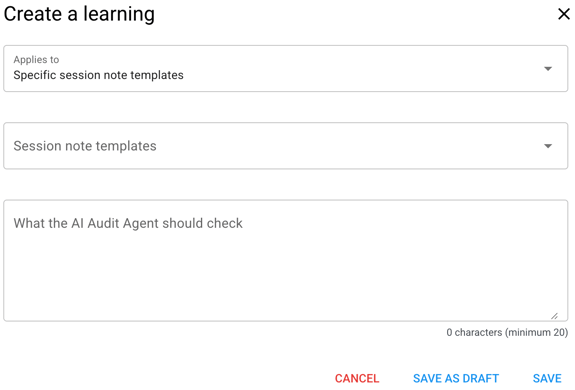
 - Complete the fields in the modal, as seen below.
- [Applies to] field drop down menu options: ‘Specific session note templates’ or "All session note templates'
- [Session note templates] field is enabled only if [Applies to] ‘Specific session note templates’. A list of your organization's note templates will appear. Select one, or as many as you want to apply to the new learning.
- [Instructions for AI Note Auditor] field is a text box to input your preferred learning as it relates to your auditing needs.
- Select [Save as Draft] or [Save].
- Repeat steps 1-3 to create new learnings manually.
- Select the
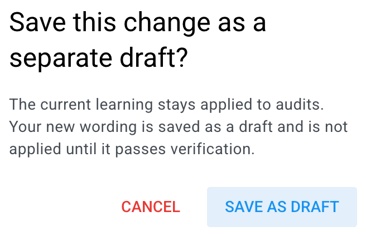
Note: Selecting [Save] will immediately update the original learning to an 'Active' status, whereas selecting [Save as Draft] keeps the original learning active while storing your edits as a separate 'Draft'. Learn more about statuses below.
Understanding the Learning Moderation Table
The [Learning Moderations] page displays a table of all learnings, along with key details about each one:
|
Column |
Description |
|
Learning |
Full text of the instruction, whether created manually or generated from feedback. |
|
Status |
Indicates whether the learning is Active (currently applied to audits), Draft (not yet applied), or a special state like Active — new draft created (see below). |
|
Source |
Shows how the learning originated — Manual (created directly by a user) or Feedback (generated from thumbs up/down responses during the AI Note Auditor beta, before manual learning creation was available). |
|
Applies to |
Shows whether the learning applies to All templates or a select few. Hover over this field to see the specific templates linked to the learning. |
|
Actions |
Pencil icon (Edit), and trash can icon (Delete) |
Learning Statuses
Each learning will show one of the following statuses:
- Draft – The learning has been created but is not yet active, or a previously created learning was reopened, edited and saved as a draft.
- Active – The learning is live and currently being applied during audit reviews.
- Active, new draft created – A proposed update has been made to an existing active learning, pending internal approval.
Edit Learnings
When a draft exists alongside an active learning, Managers have the ability to edit either.
- On the same row of the learning you wish to edit, select the pencil icon to open it.
- A modal will appear allowing you to;
- change the field for [Applies to],
- add or remove note templates from the [Select session note templates] field, or
- make edits to the text in the [Instructions for AI Note Auditor] field.
- Choose how to save your change:
- Save – immediately updates the original learning and puts the new instructions into 'Active' status.
- Save as Draft – creates a separate draft with your revisions, while the original learning remains active and continues to be applied to audits.
Working with an Edited Draft
When you select [Save as Draft] to save an edit as a draft, the learning moderation table will show two related entries:
- The original learning, now with a status of 'Active, new draft created'
- The new draft version, with a status of 'Draft'.
From here, you can:
- Click the pencil icon on either entry to continue editing — the draft or the current active learning.
- When editing the draft, you'll see a side-by-side view of the previous (active) learning and the new draft version, and can choose:
- Save as Draft – keeps it as a draft for further review.
- Verify and Replace – activates the new version and replaces the previous learning, leaving only the one updated, active learning in place.
Delete Learnings
After a learning is either created manually or via feedback, Managers have the ability to delete each.
- Click the trash can icon to the far right of the learning you want to remove.
- A confirmation modal will appear, asking you to confirm the deletion and noting that deleting the learning will stop it from being applied to future audits.
- Choose an option:
- Cancel – closes the modal without deleting anything.
- Delete – permanently removes the learning from the table.
Learnings via Feedback
A learning can still be created via feedback of the AI Note Auditor's suggestions on reviewed notes.
Click here to learn about using the thumbs up/ thumbs down feedback feature.
Click here for AI Note Auditor FAQ's.