
ℹ️ The AI Note Auditor is currently a Beta feature and can be accessed at no extra cost, it will eventually transition to a paid feature.
🔐 Access to the AI Audit Agent is a user privilege available to be turned on for Manager and Administrator roles to run audits.
To ensure access is permitted, select [Settings] >> [Organization] >> [User Privileges] >> [User Abilities] >> [Sessions].
⚠️ AI Audit Agent is restricted to reviewing only completed session and supervision activity types.
Learn more below in the "Run Review with AI" section of this article.
🆕 You can now see AI Note Auditor results right from the [Reporting] >> [Activities] page, without opening each session individually. Check audit status across sessions at once, filter your list to find notes that need attention (Flagged, Failed, or never audited) or confirm ones that passed, and save these columns to your custom views.
Four columns are available:
- AI Audit Result — the latest audit outcome for that note
- Last Audit — when the note was last audited
- Audited — whether the note has ever been audited
- Audit Outdated — flags if the note has changed since it was last audited
Set Up Options for Reporting
Option 1: Adding the four columns to the reporting page.
- On the left hand-menu, select [Reporting] >> [Activities].
- Select the
 on the far right of the table.
 - A modal will pop up, scroll down and select the [AI Note Auditor].
- In the drop down menu, select [Select all] to bulk select all four columns for display.
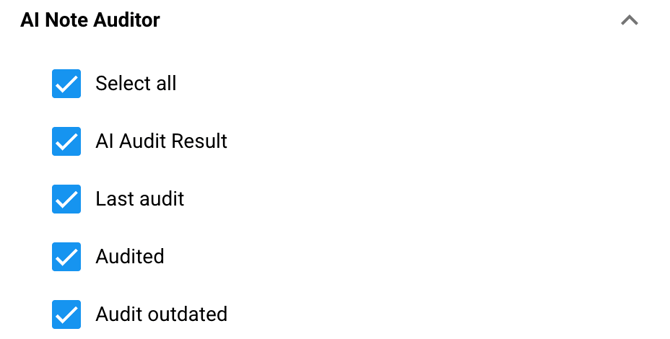
- Scroll down and select [Save] to add the columns.
💡 TIP: You can save this filtered view for future audits!
Select the  and click [Save Current View...].
Title the view and choose visibility using the checkboxes.
Option 2: Using the [+Add filter] button to filter in only sessions that meet the selected criteria into the reporting page.
- On the left hand-menu, select [Reporting] >> [Activities].
- Select the
 button on the left side above the table.
 - A modal will pop up, select [AI Note Auditor…].
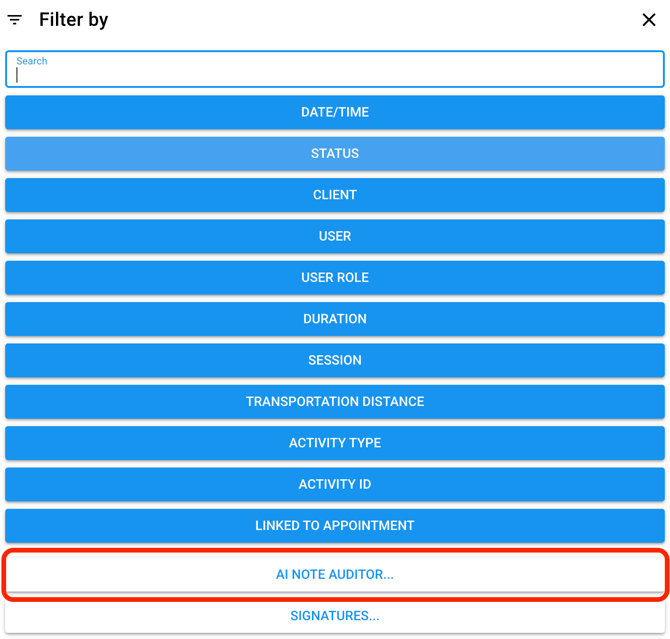
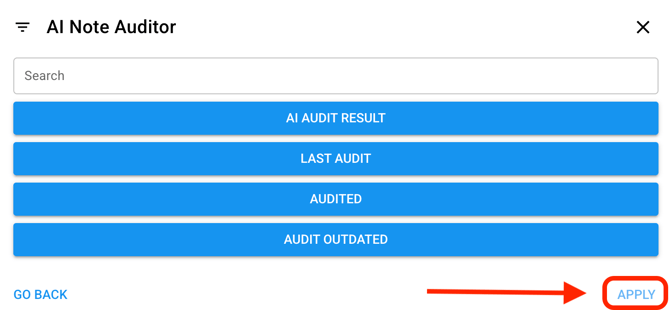
- Select from the list of four filter options:
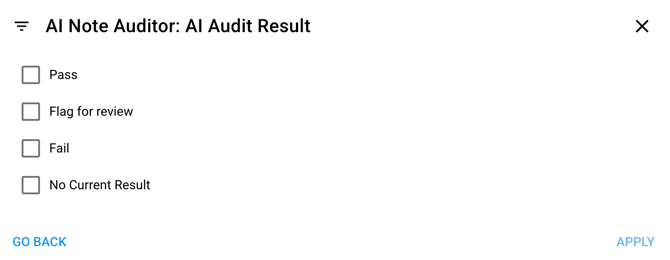
- Select [AI Audit Result] to filter in sessions that meet the selected criteria. Once selections have been made, select [Apply].
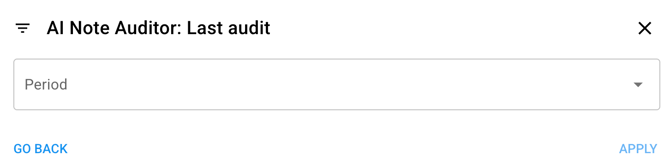
- Select [Last Audit] to filter in sessions from a specific period of time, or a custom range.
- Select [Audited] to filter in sessions that were either audited or not audited. Once a selection has been made, select [Apply].
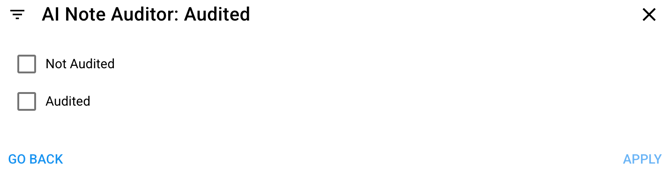
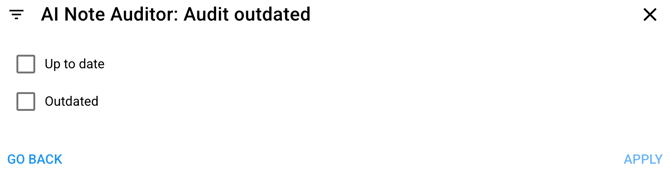
- Select [Audit Outdated] to filter sessions in which the audit is up to date or outdated. Once a selection has been made, select [Apply].
- Select [AI Audit Result] to filter in sessions that meet the selected criteria. Once selections have been made, select [Apply].
- After all selections have been made, select [Apply].
💡 TIP: You can save this filtered view for future audits!
Select the and click [Save Current View...].
Title the view and choose visibility using the checkboxes.
Run Review with AI:
To run an AI audit review, you must select at least one completed session or supervision activity type. Once selected, the [Review with AI] option is enabled to click.
❗If no eligible activities are selected in the Activities table the [Review with AI] option will be greyed out, with a tooltip prompt: “Select at least one session or supervision activity to review”.
-
Select at least one session or supervision activity type in the completed status.
- Select the 3 vertical dots in the top right of the table.
- Select [Review with AI].
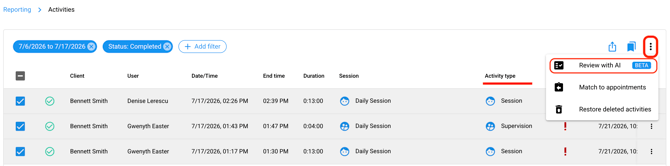
- The AI Audit Agent modal pop up will appear.
- Select your [Audit focus areas] and [Audit strictness].
- Select [Audit Notes] at the bottom right.
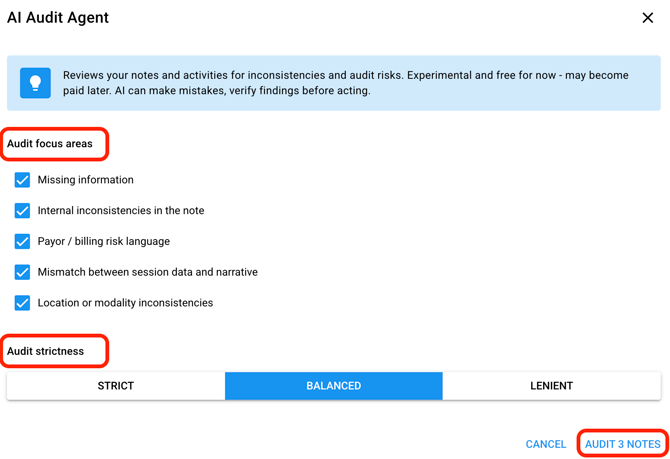
❗If there are ineligible selections, the AI Audit Agent modal banner will read: "Only session and supervision activities can be audited" and indicate how many of the selected activities are eligible and will be audited.
Ineligible activities will not be included in the audit review.
Reading the AI Note Auditor Results:
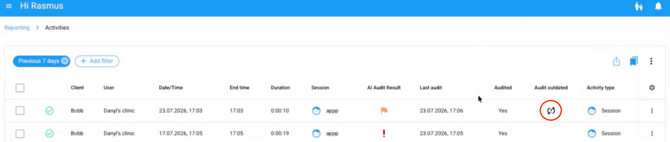
The examples below walk through what a filtered view could look like using the four columns and what each column/ field represents so you know how to read the data at a glance.
[AI Audit Result] Column:
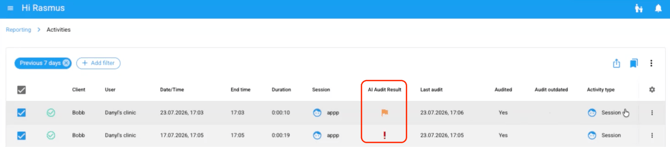
- Shows the outcome of the AI audit review: Passed, Flagged, or Failed. Blank means the session hasn't been reviewed yet.
- In the example below, the first session was flagged (orange flag icon) and the second failed (red exclamation mark).
[Last Audit] Column:
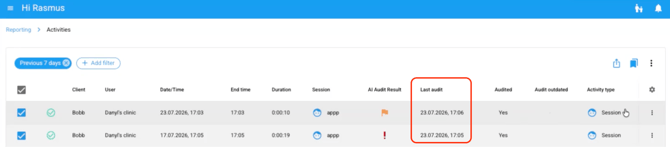
- Shows the date and time each session was last reviewed by the AI audit agent, as seen in the example below.
[Audited] Column:
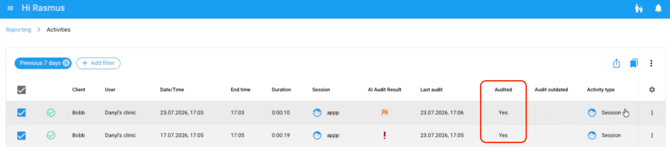
- Shows if the session was audited (Yes/No).
- In the example below, we see both sessions were audited, as indicated by “Yes”.
[Audit Outdated] Column:
- Shows whether the session has been updated since its last audit, indicated by an icon. Blank means no update.
- In the example below, the first session was updated; the second was not.
Refine AI Note Auditor with Feedback
Your feedback is what makes the AI Note Auditor smarter — every thumbs up or down you give the Auditor after reviewing its feedback directly shapes how well it learns your documentation standards. Learn how to give it feedback below:
-
Select an activity that went through review with the AI Auditor.
- The AI Auditor feedback will appear in a red (failed), orange (flagged) or green (passed) banner for your review.
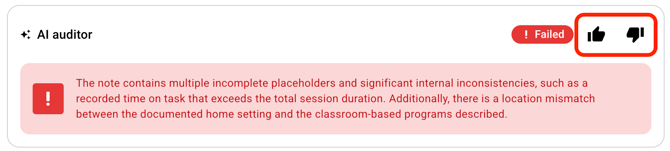
- Thumbs up the feedback if you agree with it.
- Thumbs down the feedback if you disagree with it. Provide your feedback in the text box, decide what the verdict should have been (optional), then select [Submit Feedback] to commit this learning to future audits.
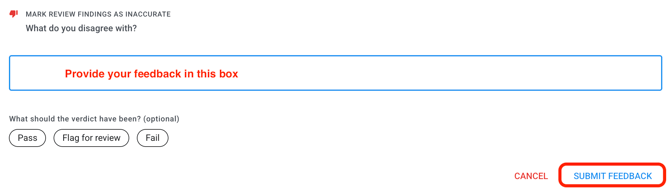
- To make further edits to learnings, click HERE.