---
title: How to Bulk Import Users into Hi Rasmus from a File
description: Bulk import your entire staff list from a spreadsheet, with built-in validation and full control over when invites go out.
---
[Skip to content](https://help.hirasmus.com/knowledge/bulk-import-users-from-a-file-0#main-content)
English
Show submenu for translations
[Request Support](https://help.hirasmus.com/knowledge/kb-tickets/new?hsLang=en) [Customer portal](https://help.hirasmus.com/helpdesk?hsLang=en)

Open main navigation
Close main navigation
- English
Show submenu for translations
- [Request Support](https://help.hirasmus.com/knowledge/kb-tickets/new)
- [Customer portal](https://help.hirasmus.com/helpdesk)
- hirasmus.com
hirasmus.com
Hi! How can we help you?
- There are no suggestions because the search field is empty.
1. [Hi Rasmus Help Center](https://help.hirasmus.com/knowledge?hsLang=en)
2. [Managing Clients & Users](https://help.hirasmus.com/knowledge/managing-clients-users?hsLang=en)
3. [Managing Users](https://help.hirasmus.com/knowledge/managing-clients-users?hsLang=en#managing-users)
August 25, 2026
# How to Bulk Import Users into Hi Rasmus from a File
## Step-by-step instructions for importing multiple staff members into Hi Rasmus from a spreadsheet.
**Article Navigation**
- [Upload Your Staff List](https://help.hirasmus.com/knowledge/bulk-import-users-from-a-file-0#Upload-Staff)
- [How to Generate an Import Template](https://help.hirasmus.com/knowledge/bulk-import-users-from-a-file-0#how-to-generate)
- [Fill Out and Validate Your Spreadsheet](https://help.hirasmus.com/knowledge/bulk-import-users-from-a-file-0#Validate-Spreadsheet)
- [Import Your Spreadsheet](https://help.hirasmus.com/knowledge/bulk-import-users-from-a-file-0#Import-Sheet)
- [Working with Draft Users](https://help.hirasmus.com/knowledge/bulk-import-users-from-a-file-0#Draft-Users)
#### Where to Upload Your Staff List
1. Navigate to **\[Settings\] \> \[Organization\] \> \[Users\]**.
2. Click **\[Bulk Import Users\]**.
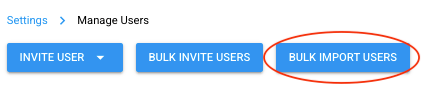
3. Upload a **.xlsx** or **.csv** file containing your staff list.
⚠️ **Note:** Importing additional premium users will increase your license count automatically to accommodate new users in your subscription price
#### How to Generate an Import Template
**❗Staff can only be imported into base roles when importing in bulk. Custom User Roles your organization has created cannot be directly used for import. User roles will have to be manually updated on the user profile if in a custom role for your organization.**
1. Navigate to **\[Settings\] \> \[Organization\] \> \[Users\]**.
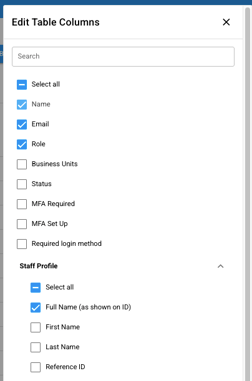
2. Select all filters from the setting wheel (at least ensuring Name, Full Name, Email, and Role are checked off)
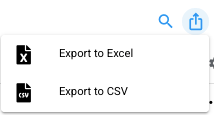
3. Download the results as an Excel file.
4. From the downloaded file delete information from the sample rows, leaving just your headers.
5. Save this as your reusable import template.
💡 **Tip:** Any information fields you want to include may be checked, including custom staff information fields. These will *only* populate if the information is filled in, but can be left blank.
#### Fill Out and Validate Your Spreadsheet
1. Fill out the spreadsheet with all staff information.
- Name, Full Name, Email, and Role are required.
- Additional columns must match an existing information field name in Hi Rasmus, or you'll be prompted to map them.
- Duplicate staff (exact match on name and email) will not be imported.
- Date fields must be formatted as dates in Excel.
- Selection fields must exactly match existing field values; use a comma-separated list for multiple values.
2. Confirm your entries match the field formatting and character limits.
💡 **Tip:** For the full list of validation rules by field, see the *Bulk Importing Staff FAQ* here.
**WATCH: Import Mapping and Errors**
#### Import Your Spreadsheet
⚠️ **Note:** Imports are for **first time entry of users** an import cannot update an existing user, and any blank fields or missing columns will need to be updated manually from the user profile. Ensure your spreadsheet is filled out fully with all necessary information in each row *before* importing.
WATCH: Importing from a File
1. Save your file in **.xlsx** or **.csv** format.
2. Upload it in **\[Bulk Import Users\]**.

3. Review the preview table for flagged rows.
- Fix flagged fields directly in the table. Rows are flagged for missing fields, invalid emails, and duplicates.
4. Click **\[Continue\]** once all rows are resolved.
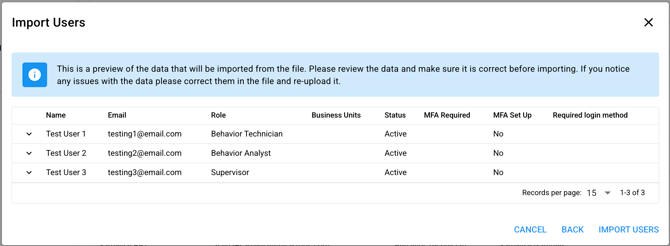
5. Click the box "Yes, send invitations now" and choose **\[Send Invites\]** to invite all imported staff immediately, or **\[Skip for Now\]** to invite them later**\*\***.
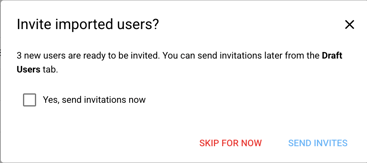
\*\***Selecting \[Skip for Now\] creates a *draft* user. Draft users cannot currently be deleted or edited.**
⚠️ **Note:** Review your file carefully before confirming. Retracting bulk-imported users can only be done 10 staff at a time.
❗ If the combined total of imported Premium (active) staff and your current license usage exceeds your available staff subscription licenses, your license count will increase accordingly. This is only for organizations using Premium **Staff** Licenses
#### Working with Draft Users
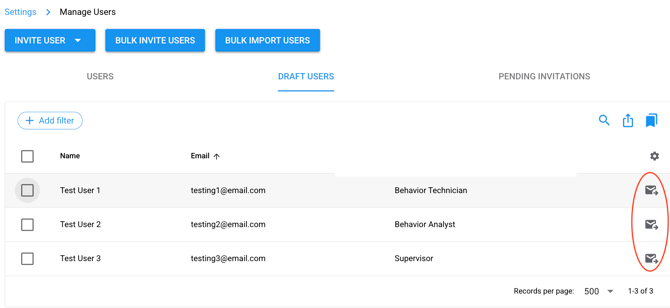
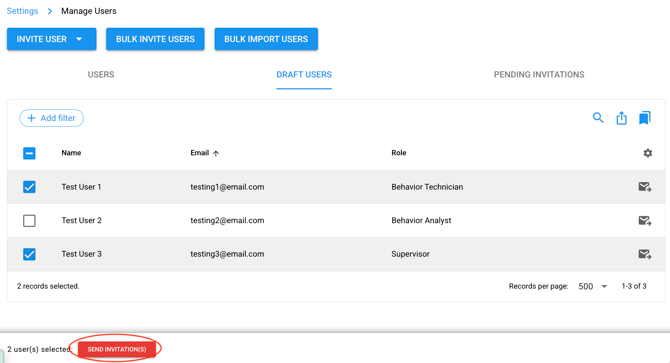
When selecting **\[Skip for Now\]** imported users will appear in the **\[Draft Users\]** tab under **\[Users\]**, so you can invite them individually or in bulk whenever you're ready.
1. Navigate to **\[Users\] \>\> \[Draft Users\]**.
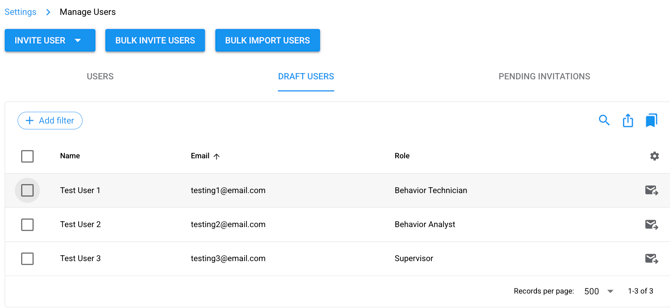
2. Click **\[Send Invite\]**. *OR* Select one or more staff members, and click **\[Send Invitations\]**
****
**Related Articles**
- Click **HERE** to see an FAQ about bulk importing users into Hi Rasmus
- Click [**HERE**](https://help.hirasmus.com/knowledge/inviting-users?hsLang=en)to learn how to add a single staff member.
- Click [**HERE**](https://help.hirasmus.com/knowledge/user-privileges?hsLang=en) to learn how to manage user roles and permissions.
- [Getting Started](https://help.hirasmus.com/knowledge/getting-started?hsLang=en#main-content)
- [Quickstart Guide](https://help.hirasmus.com/knowledge/getting-started?hsLang=en#quickstart-guide)
- [Hi Rasmus 101: Using Hi Rasmus as a Behavior Technician](https://help.hirasmus.com/knowledge/getting-started?hsLang=en#hi-rasmus-101-using-hi-rasmus-as-a-behavior-technician)
- [Hi Rasmus 201: Hi Rasmus Guide for BCBAs / Behavior Analysts](https://help.hirasmus.com/knowledge/getting-started?hsLang=en#hi-rasmus-201-hi-rasmus-guide-for-bcbas-behavior-analysts)
- [Hi Rasmus 101: Using Hi Rasmus in a Multi-Disciplinary Setting](https://help.hirasmus.com/knowledge/getting-started?hsLang=en#hi-rasmus-101-using-hi-rasmus-in-a-multi-disciplinary-setting)
- [Managing Clients & Users](https://help.hirasmus.com/knowledge/managing-clients-users?hsLang=en#main-content)
- [Managing Clients](https://help.hirasmus.com/knowledge/managing-clients-users?hsLang=en#managing-clients)
- [Managing Users](https://help.hirasmus.com/knowledge/managing-clients-users?hsLang=en#managing-users)
- [Client \<\> User Access](https://help.hirasmus.com/knowledge/managing-clients-users?hsLang=en#client-user-access)
- [User Privileges](https://help.hirasmus.com/knowledge/managing-clients-users?hsLang=en#user-privileges)
- [Multi-factor Authentication (MFA)](https://help.hirasmus.com/knowledge/managing-clients-users?hsLang=en#multi-factor-authentication-mfa)
- [Single Sign On](https://help.hirasmus.com/knowledge/managing-clients-users?hsLang=en#single-sign-on)
- [Staff Licenses](https://help.hirasmus.com/knowledge/staff-licenses?hsLang=en)
- [Creating Programs](https://help.hirasmus.com/knowledge/creating-programs?hsLang=en#main-content)
- [Your Program Library](https://help.hirasmus.com/knowledge/creating-programs?hsLang=en#your-program-library)
- [Program Setup: Prompt Levels and Workflows](https://help.hirasmus.com/knowledge/creating-programs?hsLang=en#program-setup-prompt-levels-and-workflows)
- [Program Setup: Program Building Blocks](https://help.hirasmus.com/knowledge/creating-programs?hsLang=en#program-setup-program-building-blocks)
- [Creating Programs by Type](https://help.hirasmus.com/knowledge/creating-programs?hsLang=en#creating-programs-by-type)
- [Specific Program Capabilities](https://help.hirasmus.com/knowledge/creating-programs?hsLang=en#specific-program-capabilities)
- [Featured Programs and Library Catalog](https://help.hirasmus.com/knowledge/creating-programs?hsLang=en#featured-programs-and-library-catalog)
- [Client Progress](https://help.hirasmus.com/knowledge/client-progress?hsLang=en#main-content)
- [Reviewing Client Data](https://help.hirasmus.com/knowledge/client-progress?hsLang=en#reviewing-client-data)
- [Program Modifications](https://help.hirasmus.com/knowledge/client-progress?hsLang=en#program-modifications)
- [Client Progress Reports](https://help.hirasmus.com/knowledge/client-progress?hsLang=en#client-progress-reports)
- [Assessment Results](https://help.hirasmus.com/knowledge/client-progress?hsLang=en#assessment-results)
- [Exporting Data](https://help.hirasmus.com/knowledge/client-progress?hsLang=en#exporting-data)
- [Operational Tools, Reporting and Auditing](https://help.hirasmus.com/knowledge/operational-tools-reporting-and-auditing?hsLang=en#main-content)
- [Single Client Reporting / Auditing](https://help.hirasmus.com/knowledge/operational-tools-reporting-and-auditing?hsLang=en#single-client-reporting-auditing)
- [Cross Client Reporting / Auditing (Premium)](https://help.hirasmus.com/knowledge/operational-tools-reporting-and-auditing?hsLang=en#cross-client-reporting-auditing-premium)
- [Activity Time Change Requests](https://help.hirasmus.com/knowledge/operational-tools-reporting-and-auditing?hsLang=en#activity-time-change-requests)
- [Sessions](https://help.hirasmus.com/knowledge/sessions?hsLang=en#main-content)
- [Setting Up a Client Session](https://help.hirasmus.com/knowledge/sessions?hsLang=en#setting-up-a-client-session)
- [Running a Client Session](https://help.hirasmus.com/knowledge/sessions?hsLang=en#running-a-client-session)
- [Completing Session Notes](https://help.hirasmus.com/knowledge/sessions?hsLang=en#completing-session-notes)
- [Group Sessions](https://help.hirasmus.com/knowledge/sessions?hsLang=en#group-sessions)
- [Reviewing and Editing Sessions / Activities](https://help.hirasmus.com/knowledge/sessions?hsLang=en#reviewing-and-editing-sessions-activities)
- [Supervision Mode](https://help.hirasmus.com/knowledge/supervision-mode?hsLang=en#main-content)
- [Supervision Criteria](https://help.hirasmus.com/knowledge/supervision-mode?hsLang=en#supervision-criteria)
- [Supervising Live Sessions](https://help.hirasmus.com/knowledge/supervision-mode?hsLang=en#supervising-live-sessions)
- [Supervision Session Notes](https://help.hirasmus.com/knowledge/supervision-mode?hsLang=en#supervision-session-notes)
- [Templates](https://help.hirasmus.com/knowledge/templates?hsLang=en#main-content)
- [Session Notes](https://help.hirasmus.com/knowledge/templates?hsLang=en#session-notes)
- [Forms](https://help.hirasmus.com/knowledge/templates?hsLang=en#forms)
- [Treatment Plans and Progress Reports](https://help.hirasmus.com/knowledge/templates?hsLang=en#treatment-plans-and-progress-reports)
- [Activity Types](https://help.hirasmus.com/knowledge/templates?hsLang=en#activity-types)
- [Integrations](https://help.hirasmus.com/knowledge/integrations?hsLang=en#main-content)
- [Aloha ABA Integration](https://help.hirasmus.com/knowledge/integrations?hsLang=en#aloha-aba-integration)
- [Aloha Integration: FAQ And Troubleshooting](https://help.hirasmus.com/knowledge/integrations?hsLang=en#aloha-integration-faq-and-troubleshooting)
- [Lumary Integration: Overview](https://help.hirasmus.com/knowledge/integrations?hsLang=en#lumary-integration-overview)
- [Lumary Integration: Set Up](https://help.hirasmus.com/knowledge/integrations?hsLang=en#lumary-integration-set-up)
- [Lumary Integration: Running and Reviewing Sessions](https://help.hirasmus.com/knowledge/integrations?hsLang=en#lumary-integration-running-and-reviewing-sessions)
- [Lumary Integration: FAQ and Troubleshooting](https://help.hirasmus.com/knowledge/integrations?hsLang=en#lumary-integration-faq-and-troubleshooting)
- [Boost Integration: Overview](https://help.hirasmus.com/knowledge/integrations?hsLang=en#boost-integration-overview)
- [Boost Integration: Set Up](https://help.hirasmus.com/knowledge/integrations?hsLang=en#boost-integration-set-up)
- [Boost Integration: Running and Reviewing Sessions](https://help.hirasmus.com/knowledge/integrations?hsLang=en#boost-integration-running-and-reviewing-sessions)
- [Boost Integration: FAQ and Troubleshooting](https://help.hirasmus.com/knowledge/integrations?hsLang=en#boost-integration-faq-and-troubleshooting)
- [Camber Integration: Overview](https://help.hirasmus.com/knowledge/integrations?hsLang=en#camber-integration-overview)
- [Camber Integration: Set up](https://help.hirasmus.com/knowledge/integrations?hsLang=en#camber-integration-set-up)
- [Camber: Running and Reviewing Sessions](https://help.hirasmus.com/knowledge/integrations?hsLang=en#camber-running-and-reviewing-sessions)
- [Camber: FAQ and Troubleshooting](https://help.hirasmus.com/knowledge/integrations?hsLang=en#camber-faq-and-troubleshooting)
- [TherapyPM](https://help.hirasmus.com/knowledge/integrations?hsLang=en#therapypm)
- [Offline Mode](https://help.hirasmus.com/knowledge/offline-mode?hsLang=en)
- [Parents](https://help.hirasmus.com/knowledge/parents?hsLang=en)
- [RBT Training](https://help.hirasmus.com/knowledge/rbt-training?hsLang=en)
- [Outcomes](https://help.hirasmus.com/knowledge/outcomes?hsLang=en#main-content)
- [Data Accessibility](https://help.hirasmus.com/knowledge/outcomes?hsLang=en#data-accessibility)
- [AI](https://help.hirasmus.com/knowledge/ai?hsLang=en#main-content)
- [AI Note Auditor](https://help.hirasmus.com/knowledge/ai?hsLang=en#ai-note-auditor)
- [Scheduling](https://help.hirasmus.com/knowledge/scheduling?hsLang=en#main-content)
- [🏁 Scheduling: Getting Started](https://help.hirasmus.com/knowledge/scheduling?hsLang=en#scheduling-getting-started)
- [🛠️ Scheduling: Set Up](https://help.hirasmus.com/knowledge/scheduling?hsLang=en#%EF%B8%8F-scheduling-set-up)
- [⚙️ Scheduling: Calendar Views and Settings](https://help.hirasmus.com/knowledge/scheduling?hsLang=en#%EF%B8%8F-scheduling-calendar-views-and-settings)
- [📆 Scheduling: Creating and Updating Appointments and Events](https://help.hirasmus.com/knowledge/scheduling?hsLang=en#scheduling-creating-and-updating-appointments-and-events)
- [✅ Scheduling: Completing Scheduled Appointments](https://help.hirasmus.com/knowledge/scheduling?hsLang=en#scheduling-completing-scheduled-appointments)
- [📈 Scheduling: Appointments Reporting](https://help.hirasmus.com/knowledge/scheduling?hsLang=en#scheduling-appointments-reporting)
- [Frequently Asked Questions](https://help.hirasmus.com/knowledge/frequently-asked-questions?hsLang=en#main-content)
- [Subscription and Invoices](https://help.hirasmus.com/knowledge/frequently-asked-questions?hsLang=en#subscription-and-invoices)
- [Device and App Info](https://help.hirasmus.com/knowledge/frequently-asked-questions?hsLang=en#device-and-app-info)
- [Recovering Deleted Items](https://help.hirasmus.com/knowledge/frequently-asked-questions?hsLang=en#recovering-deleted-items)
- [Settings](https://help.hirasmus.com/knowledge/settings?hsLang=en)
- [New and Coming Soon!](https://help.hirasmus.com/knowledge/new-and-coming-soon?hsLang=en#main-content)
- [Coming Soon](https://help.hirasmus.com/knowledge/new-and-coming-soon?hsLang=en#coming-soon)
[](https://hirasmus.com)
Help Center
Copyright © 2026, Hi Rasmus Inc.