
Update to the Latest Version of Hi Rasmus
To check which version of Hi Rasmus you are using, and if your Hi Rasmus needs to be updated:
1. Log in to Hi Rasmus on your device.
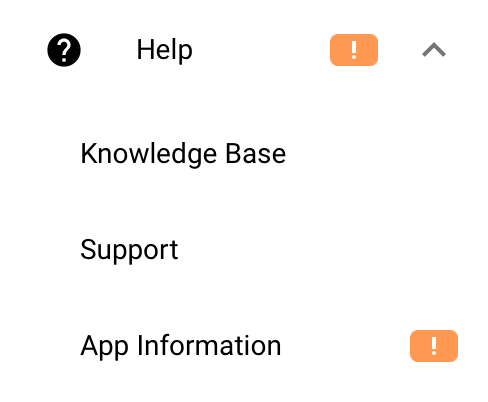
2. Select [Help]. If an update is needed, an orange icon will appear next to the [Help] button.

3. Select [App Information] from the drop down menu. If an update is needed, a yellow icon will also appear next to the [App Information] section.
.
4. If you are in need of an update, a banner will appear letting you know it is up to date.

5. If the update banner appears, select the [update now] button within the banner.
6. If no updates are available, a blue banner will appear letting you know you are good to go!

💡For information on how to update Hi Rasmus across device types, see our associated and detailed article, HERE.
Check your device’s internet connection
- If you’re on Wi-Fi, make sure you’re connected to the correct network.
- If you’re on Ethernet, check that the cable is plugged securely into both your device and the router/modem.
- Try connecting to the internet from another device (phone, tablet, or laptop).
- If other devices can connect, the issue may be with your computer.
- If no devices can connect, the problem may be with the network or ISP.
- Restart the device
Clear your cache on a web browser
- In the "Clear browsing data" box, click the checkboxes for Cookies and other site data and Cached images and files.
- Use the menu at the top to select the amount of data that you want to delete.
- Click Clear browsing data.
Time Zone Tips and Device Settings
Hi Rasmus reads date format, time format, and time zone directly from your device's system settings. If dates or times look wrong inside Hi Rasmus (day and month swapped, timestamps shifted by an hour, session times that don't match the clock), the cause is almost always a device-level setting rather than a setting inside Hi Rasmus.
There are two device-side culprits to check: language/region (which controls date and time format) and time zone (which controls the actual time shown).
💡 On iOS in particular, selecting any non-US English language variant (such as English [Australia] or English [UK]) will override your other date and time format preferences, even if those preferences appear correct.
ℹ️ Both the city and the exact time zone (e.g., GMT-5 Eastern, not GMT-6 Central) need to match what's expected. Mismatches here are the most common cause of timestamps appearing an hour off, especially after travel, after a SIM change, or on devices that have never had location services enabled.
To check language and region on an iOS device:
- Open the device [Settings] app.
- Select [General] >> [Language & Region].
- Under [Preferred Languages], remove any language other than the one matching your intended region (e.g., keep only English (US)).
- Confirm [Region] is set to your intended country.
To check time zone on an iOS device:
- From [Settings], select [General] >> [Date & Time].
- Confirm [Set Automatically] is toggled on. If it is on, check that the city listed below it matches your actual location.
- If the city is incorrect, toggle [Set Automatically] off, then select [Time Zone] and search for the correct city. The city you choose must sit inside the time zone you actually want (e.g., choose New York for Eastern Time, not a city in a neighboring zone).
- Toggle [Set Automatically] back on once the correct city is confirmed.
To check time zone on an Android device:
- Open the device [Settings] app.
- Select [System] >> [Date & time] (path may vary slightly by manufacturer).
- Confirm [Set time zone automatically] is enabled and that the displayed zone matches your location. If it does not, disable it and select the correct zone manually.
Once your device settings are updated, return to Hi Rasmus and verify that dates, times, and time zones are now displaying as expected.
If you manage devices for your organization, we recommend looping in your IT lead, as language, region, and time zone settings are often configured at the device-provisioning stage.
If the issue persists after adjusting these settings, Request Support and include the device model, OS version, the time zone shown on the device, and a screenshot of the incorrect display.