
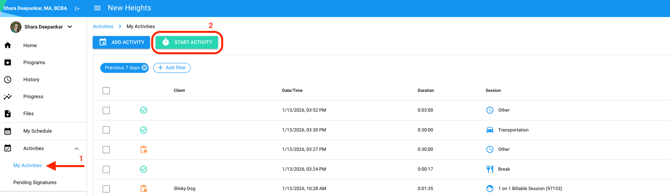
After login use the left-hand navigation tool, click [Activities] and [My Activities]
NOTE: If you are not seeing [My Activities], click on your user name in the top left-hand corner to ensure your navigation is on your user and not your clients.
📹Watch: How to Complete Staff Activities from [Start Activity]
Steps to complete staff activities from [Start Activity]
1. Navigate to [My Activities]
2. Click [Start Activity], the timer will start for the user. They can move about the system and their activity will keep going.
3. Select the correct activity type
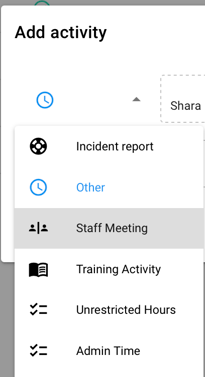
4. Click [Start Activity]

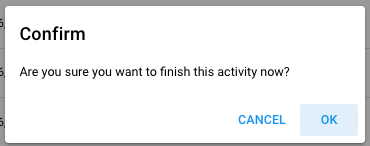
5. Once the activity is completed, click [Finish Activity]
6. Confirm the activity is completed, click [Ok]
7. Complete the note associated with that activity, if applicable
NOTE: If a note template is required, you'll need to select and complete the note template before completing the activity.
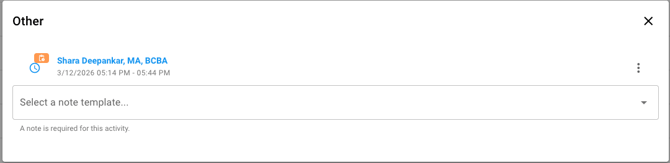
8. Select [Save]
9. Click [Sign Now]
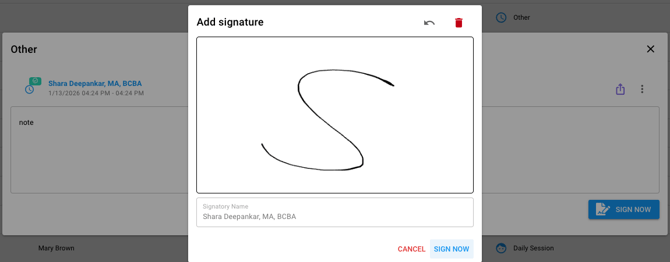
10. Add Signature
11. Click [Sign Now]
📹Watch: How to Complete Staff Activities from [Add Activity]
Steps to complete staff activities from [Add Activity]
1. Navigate to [My Activities]
2. Click [Add Activity]
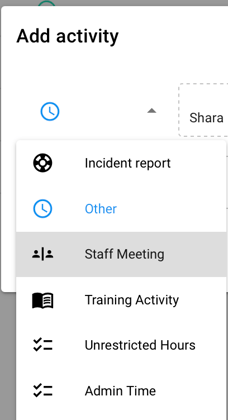
3. Select the correct activity type
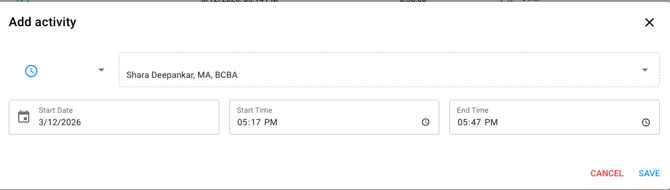
4. Edit the Start Date, if needed
5. Edit the Start and End Times, if needed
6. Once everything is correct, click [Save]
7. Complete the correct note template, if applicable
NOTE: If a note template is required, you'll need to select and complete the note template before completing the activity.
8. Click [Sign Now]
9. Add Signature
10. Click [Sign Now]