
Use this article to learn:
- Who can delete a client
- How to delete a client
- How to restore a client
- Appointments for deleted clients
- How to fix common error messages
Deleting vs. making a client inactive: If you still need access to a client's data and programs, make them inactive instead. Inactive clients keep their data, and inactivating frees up a license. To see inactive clients later, add a status filter for [Inactive] on your client list. Click here to learn how to make a client inactive.
Deleting a client
Who can delete a client: Managers and Supervisors. Administrators don't have the [Delete] option.
Before you start:
- You need to be online. Deleting isn't available offline.
- The client can't have a session running. Deleting is blocked until the session ends.
- Make sure your app is up to date. Older app versions can't delete clients.
To delete a client:
- Select [Clients] from the navigation menu.
- Find the client you want to delete.
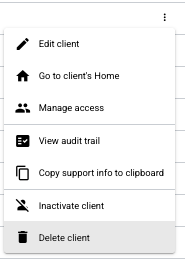
- Click the three dots (⋮) on the client's row.
- Select [Delete].
- In the confirmation window, type the client's full name.
- Click [Delete] to confirm.
What happens next:
- The client is removed from client lists.
- Staff lose access to the client right away.
- A Manager level user can restore the client for up to 60 days after deletion.
Restoring a client
Who can restore a client: Managers only. You need to be online to restore a client.
To restore a client:
- Select [Clients] from the navigation menu.
- Click the blue [Add Clients] button.
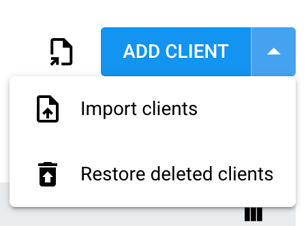
- Select [Restore deleted clients].
- Find the client in the list.
- Click [Restore].
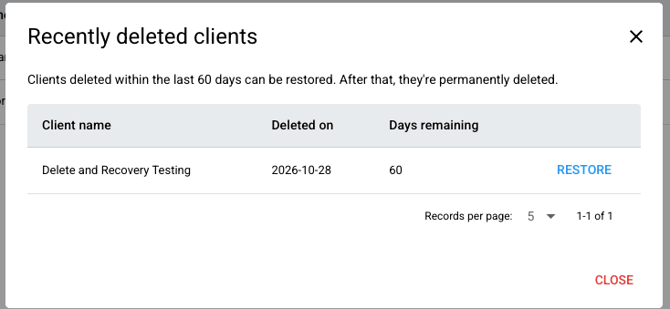
⚠️ ONLY CLIENTS DELETED IN THE LAST 60 DAYS WILL APPEAR ON THIS LIST
What comes back when you restore a client:
- Activities that were deleted with the client
- Access for team members who still work at your clinic
What doesn't come back:
- Notifications
- Access for staff who left your clinic
- Access for staff who joined the client's business unit while the client was deleted
To give staff access again, go to [Manage users] and add it back.
❗❗Licenses: If you don't have a license available in your subscription, restoring an active client adds one to your subscription.
⚠️ After 60 days, deletion is permanent. The client and their sessions, data and files are permanently deleted and can't be recovered. They also no longer appear in reports or exports.
Appointments for deleted clients
For Organizations utilizing the Scheduling Tool Add-on, appointments for a deleted client stay on staff calendars. What you see depends on your role.
|
Role |
What you see |
What you can do |
|---|---|---|
|
Managers and Administrators |
The appointment, labeled Deleted client |
Edit or delete the appointment, including recurring series |
|
All other roles |
The appointment greyed out, labeled Client Access Restricted |
Can't open the appointment |
📝 Missed-appointment alerts aren't sent for deleted clients.
Troubleshooting and FAQ
-
I don't see the option to restore. You may be on an older version of the app. Update the app, then try again.
-
I can't find the client I want to restore. Either more than 60 days have passed since the client was deleted, or the client was already restored.
-
I can't find the Delete option. Check your role. Only Managers and Supervisors can delete clients. Also check that you're online and that the client doesn't have a session running.
-
I can't find Restore deleted clients. Only Managers can restore clients, and only while online.
-
Our clinic uses an integration. Can we restore deleted clients? No. For integrated clinics, restore isn't available and deletion stays permanent.
-
A team member can't see a client I restored. Access doesn't come back for staff who left your clinic, or who joined the client's business unit while the client was deleted. Add their access again from [Manage users].