
📹Watch: How to Add a Supervision Activity to a Completed Direct Session in Hi Rasmus
Steps to add Supervision to a Direct Treatment Session that has Already been Completed
- Select the client from the drop down list in the top left-hand corner
- Select [History] > [ACTIVITIES] and search for the past day/time you provided supervision where the supervision note is needed
- Select that user's name to open up the direct service session note. (If this note has already been sent to Camber, that is okay. You can still add your supervision note!)
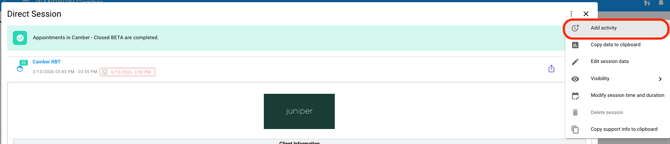
- Select the very top 3 grey dots in the upper right hand corner and choose [Add activity]
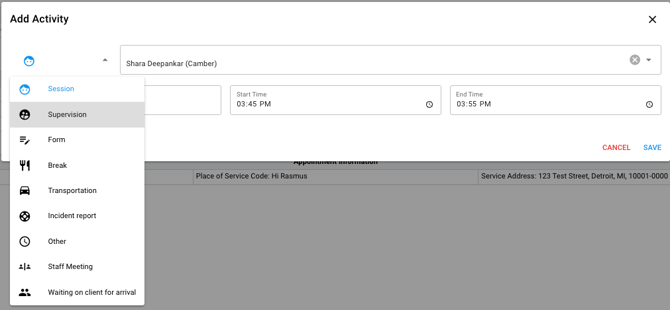
- Change the activity type to [Supervision], make sure the user is set as your name or the appropriate supervisor, and that the session start/end time is correct. (You may not be able to change the session time due to your organization's privileges set).
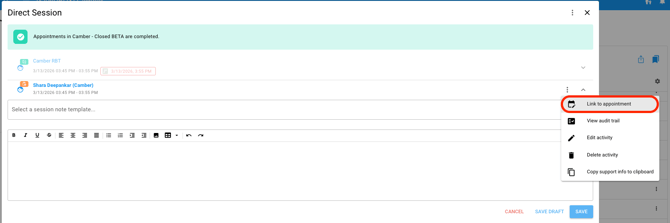
- Before writing your note, link your session to your Camber appointment by selecting the 3 grey dots to the right of your name and select [Link to appointment].
- Choose the correct appointment and press [Save].

- Select [COMPLETE SUPERVISION NOTES] and type out your supervision notes.
- Complete your Supervision Note and Signature.
- If no other signatures are required your note will send to Camber after you sign.
- If another signature is required, you'll need to collect that signature and then press [Send Now] at the top of the activity.
