
💡The following User Privileges dictate the ability to update an already completed session note. It is up to your organization to ensure that your internal processes and user privileges within Hi Rasmus meet your compliance standards for updating completed notes.
-
- Unrender Activities
- Reopen and edit activities
- Preserve signatures when reopening/editing activities
🎥 Watch: Steps to Update a Note Already Sent to Camber Billing +
Steps to Update a Note Already Sent to Camber Billing +
1. Navigate to the correct activity that needs editing
2. Click the 3 dots in the upper right-hand corner, in the same row as the username.
3. Select [Unrender Activity]
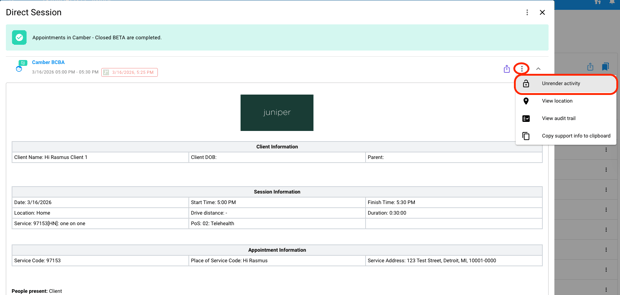
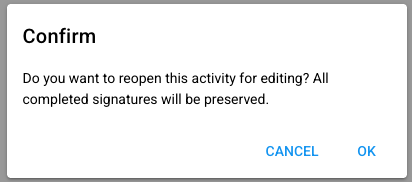
4. Click [Ok] to confirm you want to unrender the activity, now the activity is in a [completed] status
5. Click the 3 dots in the upper right-hand corner, in the same row as the username, again.
6. Select [Reopen activity for editing]
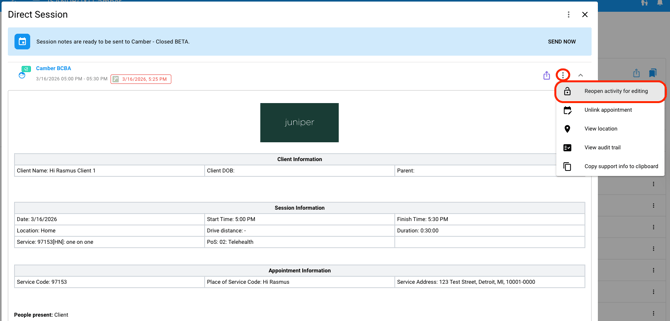
7. Click [Ok] to confirm
8. Select [Complete Session Notes] to edit your note.
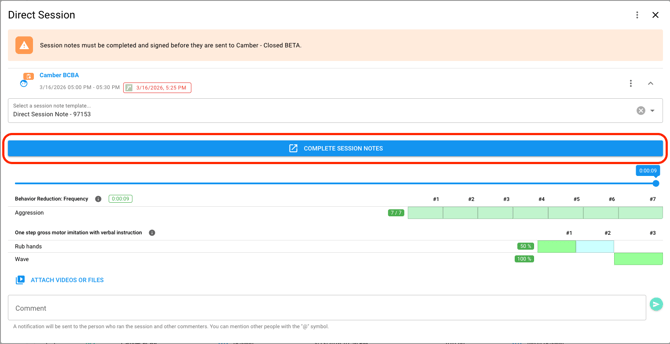
9. Click back through the note wizard at the top to make any adjustments.
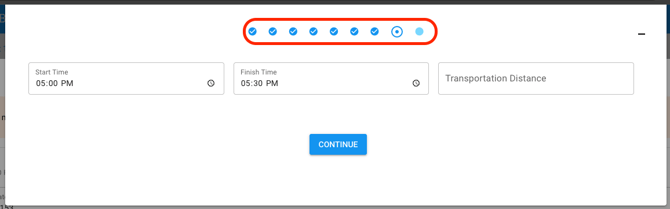
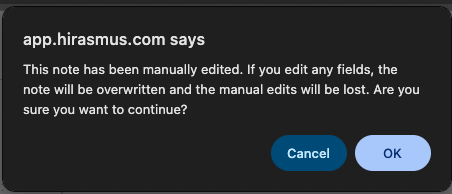
10. Click [Ok]
11. Click [Continue] to complete the note
12. Once you've made those adjustments, scroll down and click [Save Session Note]
13. Click [Send Now] at the top of the screen to send the adjusted activity to Camber
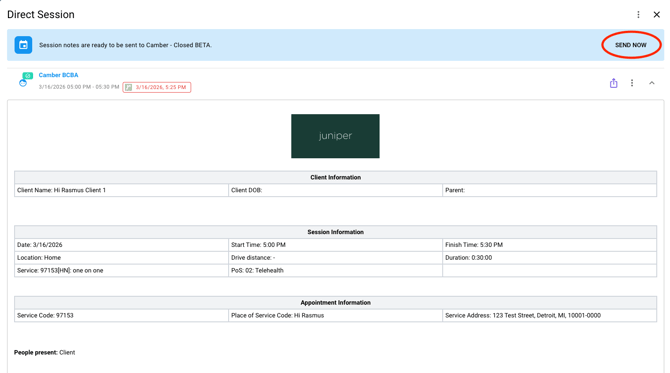
Now the activity is transferred to Camber
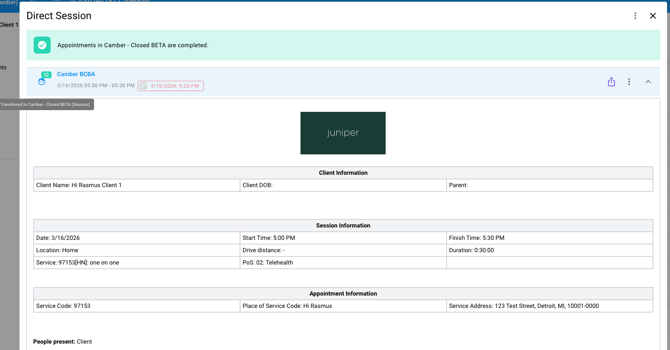
💡The changes to the activity will live in the [history] section of the appointment in Camber Billing +. The changes may not be reflected on the original appointment.