---
title: "Hi Rasmus | Camber: How do I enter a session for a past date and transfer to Camber?"
description: Learn how to enter data for a past session and send to Camber.
---
[Skip to content](https://help.hirasmus.com/knowledge/hi-rasmus-camber-how-do-i-enter-a-session-for-a-past-date-and-transfer-to-camber#main-content)
English
Show submenu for translations
[Request Support](https://help.hirasmus.com/knowledge/kb-tickets/new?hsLang=en) [Customer portal](https://help.hirasmus.com/helpdesk?hsLang=en)

Open main navigation
Close main navigation
- English
Show submenu for translations
- [Request Support](https://help.hirasmus.com/knowledge/kb-tickets/new)
- [Customer portal](https://help.hirasmus.com/helpdesk)
- hirasmus.com
hirasmus.com
Hi! How can we help you?
- There are no suggestions because the search field is empty.
1. [Hi Rasmus Help Center](https://help.hirasmus.com/knowledge?hsLang=en)
2. [Integrations](https://help.hirasmus.com/knowledge/integrations?hsLang=en)
3. [Camber: Running and Reviewing Sessions](https://help.hirasmus.com/knowledge/integrations?hsLang=en#camber-running-and-reviewing-sessions)
September 22, 2026
# Hi Rasmus | Camber: How do I enter a session for a past date and transfer to Camber?
## Hi Rasmus allows you to easily enter session data and complete notes for a past appointment and seamlessly render to Camber.
**NOTE:** In order to **\[Add a Manual Session Entry\]** directly from a scheduled appointment from the **\[My Schedule\]** page (**option 2** in the video walk-through), the client must have a session set up that is mapped to the corresponding appointment type.
For more details on session mapping, click [**HERE**](https://help.hirasmus.com/knowledge/hi-rasmus--camber-billing-integration-session-type-activity-mapping?hsLang=en)
**User Privilege**: Entering a Manual Session is a user privilege. Manager-level users can give access. Go to User Privileges \>\> Sessions \>\> then check \[Enter Manual Sessions\] for that user role.
### **🎥 Watch: How to enter a session for a past date and transfer to Camber**
### Creating a Manual Session Entry on the Client's Homepage
1\. From the Learner's home page select the down arrow next to **\[Start Session\]** for the session you would like to create an entry for and select **\[Manual Session Entry\]**

2\. If entering for another user, you can change the \[activity type\] and/or \[user\]. If entering for a PAST date you **MUST** adjust the **\[Start Date\]** field or you will not be able to link to the correct Camber Appointment. Adjust the start and end times to reflect the correct times of the session and select **\[Save\]**
NOTE: You may or may not have the option to change the date and time based on permissions so please be sure to reach out to the appropriate person to change the date and/or start and end times before sending over to Camber!
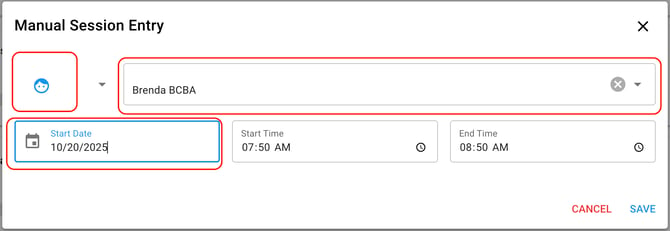
3\. Add data, if applicable.
NOTE: Make sure to scroll down and select \[**Save Session Data\]** after entering data
**TIP:** If you've included program data in your session note template - add the session data **BEFORE** completing your note
4\. Complete your session note by selecting **\[Complete Session Notes\]**
**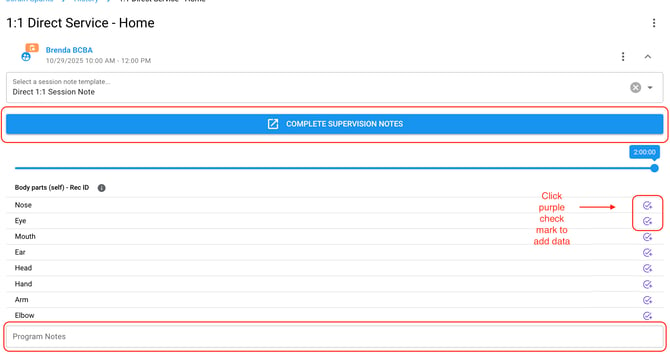**
5\. To link to the appointment in Camber select the three vertical dots next to the export button and select **\[Link to appointment\]**
**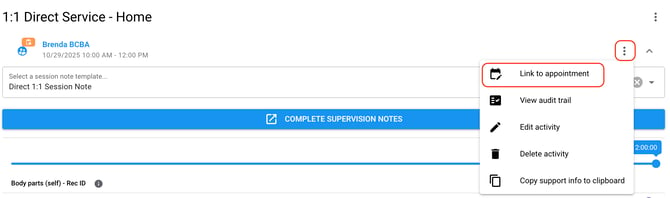**
6\. Select from the list of appointments to link to. Only appointments that match the same activity date of the session will be available to link to. Select **\[Save\]**
7\. Once the notes are completed and all required signatures are collected you will be able to send your note to Camber.
### Creating a Manual Session Entry: On the Client's Appointment or on your Schedule
1\. Navigate to either the \[My Schedule\] page from your own user page or the client's **\[Appointments\]** page and identify the appointment you need to create a session for.
2\. Select the three vertical dots in the corner of the appointment and select **\[+ Manual session entry\]**
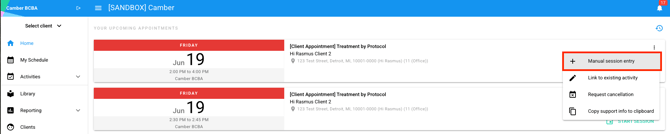
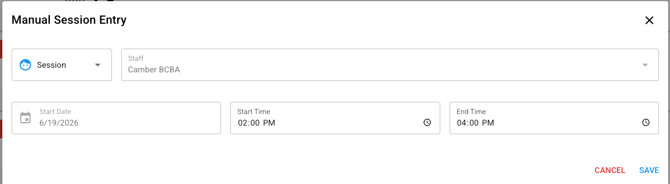
3\. You will not be able to edit the user name or Start Date. You can adjust the Start Time and End Time if you have permissions to do so. Select \[**Save**\]
4\. Add data if applicable.
NOTE: Make sure to scroll down and select \[**Save Session Data\]** after entering data

**TIP:** If you've included program data in your session note template - add the session data **BEFORE** completing your note
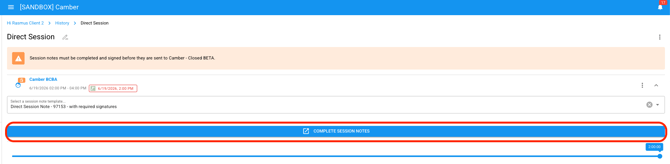
5\. Complete your session note by selecting **\[Complete Session Notes\]**
****
6\. Complete all signatures
7\. Select **\[Send Now\]**
****
Your activity will be in the transferred to Camber status and can be indicated with the status symbol 
- [Getting Started](https://help.hirasmus.com/knowledge/getting-started?hsLang=en#main-content)
- [Quickstart Guide](https://help.hirasmus.com/knowledge/getting-started?hsLang=en#quickstart-guide)
- [Hi Rasmus 101: Using Hi Rasmus as a Behavior Technician](https://help.hirasmus.com/knowledge/getting-started?hsLang=en#hi-rasmus-101-using-hi-rasmus-as-a-behavior-technician)
- [Hi Rasmus 201: Hi Rasmus Guide for BCBAs / Behavior Analysts](https://help.hirasmus.com/knowledge/getting-started?hsLang=en#hi-rasmus-201-hi-rasmus-guide-for-bcbas-behavior-analysts)
- [Hi Rasmus 101: Using Hi Rasmus in a Multi-Disciplinary Setting](https://help.hirasmus.com/knowledge/getting-started?hsLang=en#hi-rasmus-101-using-hi-rasmus-in-a-multi-disciplinary-setting)
- [Managing Clients & Users](https://help.hirasmus.com/knowledge/managing-clients-users?hsLang=en#main-content)
- [Managing Clients](https://help.hirasmus.com/knowledge/managing-clients-users?hsLang=en#managing-clients)
- [Managing Users](https://help.hirasmus.com/knowledge/managing-clients-users?hsLang=en#managing-users)
- [Client \<\> User Access](https://help.hirasmus.com/knowledge/managing-clients-users?hsLang=en#client-user-access)
- [User Privileges](https://help.hirasmus.com/knowledge/managing-clients-users?hsLang=en#user-privileges)
- [Multi-factor Authentication (MFA)](https://help.hirasmus.com/knowledge/managing-clients-users?hsLang=en#multi-factor-authentication-mfa)
- [Single Sign On](https://help.hirasmus.com/knowledge/managing-clients-users?hsLang=en#single-sign-on)
- [Staff Licenses](https://help.hirasmus.com/knowledge/staff-licenses?hsLang=en)
- [Creating Programs](https://help.hirasmus.com/knowledge/creating-programs?hsLang=en#main-content)
- [Your Program Library](https://help.hirasmus.com/knowledge/creating-programs?hsLang=en#your-program-library)
- [Program Setup: Prompt Levels and Workflows](https://help.hirasmus.com/knowledge/creating-programs?hsLang=en#program-setup-prompt-levels-and-workflows)
- [Program Setup: Program Building Blocks](https://help.hirasmus.com/knowledge/creating-programs?hsLang=en#program-setup-program-building-blocks)
- [Creating Programs by Type](https://help.hirasmus.com/knowledge/creating-programs?hsLang=en#creating-programs-by-type)
- [Specific Program Capabilities](https://help.hirasmus.com/knowledge/creating-programs?hsLang=en#specific-program-capabilities)
- [Featured Programs and Library Catalog](https://help.hirasmus.com/knowledge/creating-programs?hsLang=en#featured-programs-and-library-catalog)
- [Client Progress](https://help.hirasmus.com/knowledge/client-progress?hsLang=en#main-content)
- [Reviewing Client Data](https://help.hirasmus.com/knowledge/client-progress?hsLang=en#reviewing-client-data)
- [Program Modifications](https://help.hirasmus.com/knowledge/client-progress?hsLang=en#program-modifications)
- [Client Progress Reports](https://help.hirasmus.com/knowledge/client-progress?hsLang=en#client-progress-reports)
- [Assessment Results](https://help.hirasmus.com/knowledge/client-progress?hsLang=en#assessment-results)
- [Exporting Data](https://help.hirasmus.com/knowledge/client-progress?hsLang=en#exporting-data)
- [Operational Tools, Reporting and Auditing](https://help.hirasmus.com/knowledge/operational-tools-reporting-and-auditing?hsLang=en#main-content)
- [Single Client Reporting / Auditing](https://help.hirasmus.com/knowledge/operational-tools-reporting-and-auditing?hsLang=en#single-client-reporting-auditing)
- [Cross Client Reporting / Auditing (Premium)](https://help.hirasmus.com/knowledge/operational-tools-reporting-and-auditing?hsLang=en#cross-client-reporting-auditing-premium)
- [Activity Time Change Requests](https://help.hirasmus.com/knowledge/operational-tools-reporting-and-auditing?hsLang=en#activity-time-change-requests)
- [Sessions](https://help.hirasmus.com/knowledge/sessions?hsLang=en#main-content)
- [Setting Up a Client Session](https://help.hirasmus.com/knowledge/sessions?hsLang=en#setting-up-a-client-session)
- [Running a Client Session](https://help.hirasmus.com/knowledge/sessions?hsLang=en#running-a-client-session)
- [Completing Session Notes](https://help.hirasmus.com/knowledge/sessions?hsLang=en#completing-session-notes)
- [Group Sessions](https://help.hirasmus.com/knowledge/sessions?hsLang=en#group-sessions)
- [Reviewing and Editing Sessions / Activities](https://help.hirasmus.com/knowledge/sessions?hsLang=en#reviewing-and-editing-sessions-activities)
- [Supervision Mode](https://help.hirasmus.com/knowledge/supervision-mode?hsLang=en#main-content)
- [Supervision Criteria](https://help.hirasmus.com/knowledge/supervision-mode?hsLang=en#supervision-criteria)
- [Supervising Live Sessions](https://help.hirasmus.com/knowledge/supervision-mode?hsLang=en#supervising-live-sessions)
- [Supervision Session Notes](https://help.hirasmus.com/knowledge/supervision-mode?hsLang=en#supervision-session-notes)
- [Templates](https://help.hirasmus.com/knowledge/templates?hsLang=en#main-content)
- [Session Notes](https://help.hirasmus.com/knowledge/templates?hsLang=en#session-notes)
- [Forms](https://help.hirasmus.com/knowledge/templates?hsLang=en#forms)
- [Treatment Plans and Progress Reports](https://help.hirasmus.com/knowledge/templates?hsLang=en#treatment-plans-and-progress-reports)
- [Activity Types](https://help.hirasmus.com/knowledge/templates?hsLang=en#activity-types)
- [Integrations](https://help.hirasmus.com/knowledge/integrations?hsLang=en#main-content)
- [Aloha ABA Integration](https://help.hirasmus.com/knowledge/integrations?hsLang=en#aloha-aba-integration)
- [Aloha Integration: FAQ And Troubleshooting](https://help.hirasmus.com/knowledge/integrations?hsLang=en#aloha-integration-faq-and-troubleshooting)
- [Lumary Integration: Overview](https://help.hirasmus.com/knowledge/integrations?hsLang=en#lumary-integration-overview)
- [Lumary Integration: Set Up](https://help.hirasmus.com/knowledge/integrations?hsLang=en#lumary-integration-set-up)
- [Lumary Integration: Running and Reviewing Sessions](https://help.hirasmus.com/knowledge/integrations?hsLang=en#lumary-integration-running-and-reviewing-sessions)
- [Lumary Integration: FAQ and Troubleshooting](https://help.hirasmus.com/knowledge/integrations?hsLang=en#lumary-integration-faq-and-troubleshooting)
- [Boost Integration: Overview](https://help.hirasmus.com/knowledge/integrations?hsLang=en#boost-integration-overview)
- [Boost Integration: Set Up](https://help.hirasmus.com/knowledge/integrations?hsLang=en#boost-integration-set-up)
- [Boost Integration: Running and Reviewing Sessions](https://help.hirasmus.com/knowledge/integrations?hsLang=en#boost-integration-running-and-reviewing-sessions)
- [Boost Integration: FAQ and Troubleshooting](https://help.hirasmus.com/knowledge/integrations?hsLang=en#boost-integration-faq-and-troubleshooting)
- [Camber Integration: Overview](https://help.hirasmus.com/knowledge/integrations?hsLang=en#camber-integration-overview)
- [Camber Integration: Set up](https://help.hirasmus.com/knowledge/integrations?hsLang=en#camber-integration-set-up)
- [Camber: Running and Reviewing Sessions](https://help.hirasmus.com/knowledge/integrations?hsLang=en#camber-running-and-reviewing-sessions)
- [Camber: FAQ and Troubleshooting](https://help.hirasmus.com/knowledge/integrations?hsLang=en#camber-faq-and-troubleshooting)
- [TherapyPM](https://help.hirasmus.com/knowledge/integrations?hsLang=en#therapypm)
- [Offline Mode](https://help.hirasmus.com/knowledge/offline-mode?hsLang=en)
- [Parents](https://help.hirasmus.com/knowledge/parents?hsLang=en)
- [RBT Training](https://help.hirasmus.com/knowledge/rbt-training?hsLang=en)
- [Outcomes](https://help.hirasmus.com/knowledge/outcomes?hsLang=en#main-content)
- [Data Accessibility](https://help.hirasmus.com/knowledge/outcomes?hsLang=en#data-accessibility)
- [AI](https://help.hirasmus.com/knowledge/ai?hsLang=en#main-content)
- [AI Note Auditor](https://help.hirasmus.com/knowledge/ai?hsLang=en#ai-note-auditor)
- [Scheduling](https://help.hirasmus.com/knowledge/scheduling?hsLang=en#main-content)
- [🏁 Scheduling: Getting Started](https://help.hirasmus.com/knowledge/scheduling?hsLang=en#scheduling-getting-started)
- [🛠️ Scheduling: Set Up](https://help.hirasmus.com/knowledge/scheduling?hsLang=en#%EF%B8%8F-scheduling-set-up)
- [⚙️ Scheduling: Calendar Views and Settings](https://help.hirasmus.com/knowledge/scheduling?hsLang=en#%EF%B8%8F-scheduling-calendar-views-and-settings)
- [📆 Scheduling: Creating and Updating Appointments and Events](https://help.hirasmus.com/knowledge/scheduling?hsLang=en#scheduling-creating-and-updating-appointments-and-events)
- [✅ Scheduling: Completing Scheduled Appointments](https://help.hirasmus.com/knowledge/scheduling?hsLang=en#scheduling-completing-scheduled-appointments)
- [📈 Scheduling: Appointments Reporting](https://help.hirasmus.com/knowledge/scheduling?hsLang=en#scheduling-appointments-reporting)
- [Frequently Asked Questions](https://help.hirasmus.com/knowledge/frequently-asked-questions?hsLang=en#main-content)
- [Subscription and Invoices](https://help.hirasmus.com/knowledge/frequently-asked-questions?hsLang=en#subscription-and-invoices)
- [Device and App Info](https://help.hirasmus.com/knowledge/frequently-asked-questions?hsLang=en#device-and-app-info)
- [Recovering Deleted Items](https://help.hirasmus.com/knowledge/frequently-asked-questions?hsLang=en#recovering-deleted-items)
- [Settings](https://help.hirasmus.com/knowledge/settings?hsLang=en)
- [New and Coming Soon!](https://help.hirasmus.com/knowledge/new-and-coming-soon?hsLang=en#main-content)
- [Coming Soon](https://help.hirasmus.com/knowledge/new-and-coming-soon?hsLang=en#coming-soon)
[](https://hirasmus.com)
Help Center
Copyright © 2026, Hi Rasmus Inc.