---
title: "Hi Rasmus | Camber Billing + Integration: How to view Camber Appointments in Hi Rasmus"
description: Review the 4 different ways to view Camber appointments in Hi Rasmus.
---
[Skip to content](https://help.hirasmus.com/knowledge/hi-rasmus-camber-how-to-view-camber-appointments-in-hi-rasmus#main-content)
English
Show submenu for translations
[Request Support](https://help.hirasmus.com/knowledge/kb-tickets/new?hsLang=en) [Customer portal](https://help.hirasmus.com/helpdesk?hsLang=en)

Open main navigation
Close main navigation
- English
Show submenu for translations
- [Request Support](https://help.hirasmus.com/knowledge/kb-tickets/new)
- [Customer portal](https://help.hirasmus.com/helpdesk)
- hirasmus.com
hirasmus.com
Hi! How can we help you?
- There are no suggestions because the search field is empty.
1. [Hi Rasmus Help Center](https://help.hirasmus.com/knowledge?hsLang=en)
2. [Integrations](https://help.hirasmus.com/knowledge/integrations?hsLang=en)
3. [Camber Integration: Overview](https://help.hirasmus.com/knowledge/integrations?hsLang=en#camber-integration-overview)
August 12, 2026
# Hi Rasmus | Camber Billing + Integration: How to view Camber Appointments in Hi Rasmus
## This article reviews how to connect a Hi Rasmus user profile to an existing profile in Camber. Hi Rasmus Profiles
NOTE: In order for users to see their past appointments in Hi Rasmus for themselves and their clients the \[My Schedule\] and \[Appointments\] pages must be enabled within the [user privileges](https://help.hirasmus.com/knowledge/user-privileges?hsLang=en) for the applicable role.
NOTE: Scheduled appointments in Camber will **ONLY** show on Hi Rasmus if a user and client are linked to their Camber profile in Hi Rasmus. To learn more about this initial setup, click, **[HERE](https://help.hirasmus.com/knowledge/linking-existing-users-to-camber?hsLang=en)**.
### **🎥 Watch: Viewing Scheduled Appointments in Hi Rasmus**
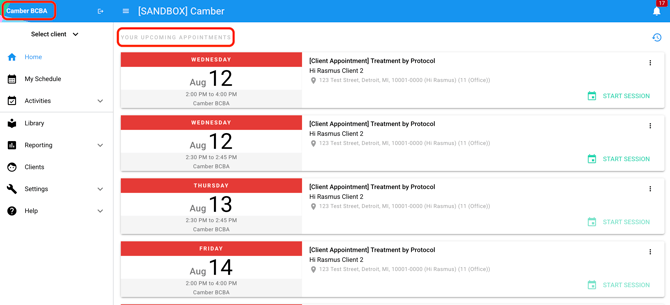
### View 1: User's Home Page
- Select \[your name\] in the upper left-hand corner and/or the page when you first login to Hi Rasmus
- This view will show you upcoming appointments for the week
- You can start your scheduled daily sessions from this view except for Live Supervision
- To run a live supervision session, navigate to the client's home page and click on \[**SUPERVISE**\] on the technician's session
- The technician needs to start their session BEFORE you can click on \[**Supervise**\]
- To enter in a session note and/or data for a past appointment, click [here](https://help.hirasmus.com/knowledge/hi-rasmus-lumary-how-do-i-enter-a-session-for-past-date-and-transfer-to-lumary?hsLang=en) for a step by step guide
- Select \[**refresh appointments**\] on the top right of the screen if you do not see an appointment for the day
### View 2: My Schedule Tab
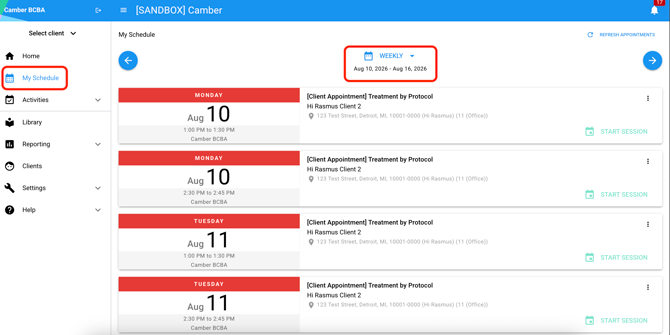
- This is a setting under \[**settings**\] \> \[**organization**\] \> \[**user privileges**\] \> \[**user pages**\] that must be turned on by a manager-level user
- \[**My Schedule**\] can be found on the left-hand navigation menu under \[**files**\]
- There is the option to toggle between \[**DAILY**\], \[**WEEKLY**\], or \[**MONTHLY**\] view
- Users can also select the blue arrows to the right or left to toggle from past appointments to future appointments
- There is the option to select \[**REFRESH APPOINTMENTS**\] if you do not see a scheduled appointment
- Users can start a session from the \[**My Schedule**\] page for the current day
- Users will need to do manual session entry for any past appointments. To learn more, click, [**HERE**](https://help.hirasmus.com/knowledge/hi-rasmus-camber-how-do-i-enter-a-session-for-a-past-date-and-transfer-to-camber?hsLang=en)
### 
### View 3: Client's Home Page
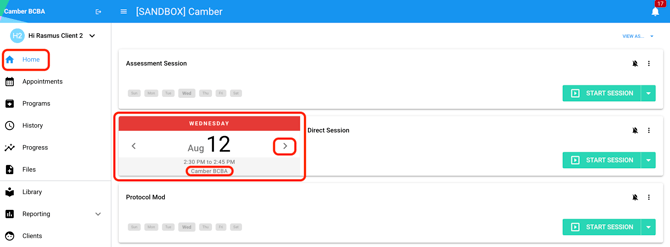
- Navigate to your client's home page using the drop-down menu in the upper left-hand corner.
- If session mapping is set up (Manager-Level Users, to review, click [**HERE**](https://help.hirasmus.com/knowledge/hi-rasmus-camber-billing-integration-session-type-activity-mapping?hsLang=en)), scheduled session types from Camber will only map to the correct session name in Hi Rasmus.
- Each session will have a calendar view that you can toggle right to view today or upcoming appointments for the week.
- A session that can be started today will be bold.
- A future or past session will be greyed out/unable to start.
- The user's name will show below the scheduled date and time on a session.
- If you do not see a user's name, click [**HERE**](https://help.hirasmus.com/knowledge/linking-existing-clients-to-camber?hsLang=en) to review how to link user's Hi Rasmus and Camber profile
- You can start your client's scheduled appointment for today by selecting \[**START SESSSION**\]
- Make sure you are starting the appointment with your name on the schedule.
### View 4: Client's Appointments Tab
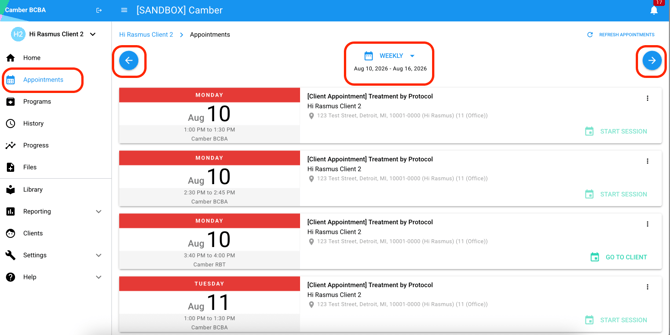
- Navigate to a client's profile from the drop-down list in the upper left-hand corner
- Select \[**Appointments**\] on the left-hand menu bar
- Similar to the \[**My Schedule**\] view, appointments can be viewed \[**DAILY**\], \[**WEEKLY**\], and/or \[**MONTHLY**\] for that learner.
- User can toggle to previous and/or future appointments using the blue arrows left or right
- User can \[**REFRESH APPOINTMENTS**\] if you do not see an appointment that was just added
- The client's \[**Appointments**\] tab shows ALL scheduled appointments with the client so all providers scheduled to work with this client will appear in this list
- You can start a session scheduled for today from this view
- [Getting Started](https://help.hirasmus.com/knowledge/getting-started?hsLang=en#main-content)
- [Quickstart Guide](https://help.hirasmus.com/knowledge/getting-started?hsLang=en#quickstart-guide)
- [Hi Rasmus 101: Using Hi Rasmus as a Behavior Technician](https://help.hirasmus.com/knowledge/getting-started?hsLang=en#hi-rasmus-101-using-hi-rasmus-as-a-behavior-technician)
- [Hi Rasmus 201: Hi Rasmus Guide for BCBAs / Behavior Analysts](https://help.hirasmus.com/knowledge/getting-started?hsLang=en#hi-rasmus-201-hi-rasmus-guide-for-bcbas-behavior-analysts)
- [Hi Rasmus 101: Using Hi Rasmus in a Multi-Disciplinary Setting](https://help.hirasmus.com/knowledge/getting-started?hsLang=en#hi-rasmus-101-using-hi-rasmus-in-a-multi-disciplinary-setting)
- [Managing Clients & Users](https://help.hirasmus.com/knowledge/managing-clients-users?hsLang=en#main-content)
- [Managing Clients](https://help.hirasmus.com/knowledge/managing-clients-users?hsLang=en#managing-clients)
- [Managing Users](https://help.hirasmus.com/knowledge/managing-clients-users?hsLang=en#managing-users)
- [Client \<\> User Access](https://help.hirasmus.com/knowledge/managing-clients-users?hsLang=en#client-user-access)
- [User Privileges](https://help.hirasmus.com/knowledge/managing-clients-users?hsLang=en#user-privileges)
- [Multi-factor Authentication (MFA)](https://help.hirasmus.com/knowledge/managing-clients-users?hsLang=en#multi-factor-authentication-mfa)
- [Single Sign On](https://help.hirasmus.com/knowledge/managing-clients-users?hsLang=en#single-sign-on)
- [Staff Licenses](https://help.hirasmus.com/knowledge/staff-licenses?hsLang=en)
- [Creating Programs](https://help.hirasmus.com/knowledge/creating-programs?hsLang=en#main-content)
- [Your Program Library](https://help.hirasmus.com/knowledge/creating-programs?hsLang=en#your-program-library)
- [Program Setup: Prompt Levels and Workflows](https://help.hirasmus.com/knowledge/creating-programs?hsLang=en#program-setup-prompt-levels-and-workflows)
- [Program Setup: Program Building Blocks](https://help.hirasmus.com/knowledge/creating-programs?hsLang=en#program-setup-program-building-blocks)
- [Creating Programs by Type](https://help.hirasmus.com/knowledge/creating-programs?hsLang=en#creating-programs-by-type)
- [Specific Program Capabilities](https://help.hirasmus.com/knowledge/creating-programs?hsLang=en#specific-program-capabilities)
- [Featured Programs and Library Catalog](https://help.hirasmus.com/knowledge/creating-programs?hsLang=en#featured-programs-and-library-catalog)
- [Client Progress](https://help.hirasmus.com/knowledge/client-progress?hsLang=en#main-content)
- [Reviewing Client Data](https://help.hirasmus.com/knowledge/client-progress?hsLang=en#reviewing-client-data)
- [Program Modifications](https://help.hirasmus.com/knowledge/client-progress?hsLang=en#program-modifications)
- [Client Progress Reports](https://help.hirasmus.com/knowledge/client-progress?hsLang=en#client-progress-reports)
- [Assessment Results](https://help.hirasmus.com/knowledge/client-progress?hsLang=en#assessment-results)
- [Exporting Data](https://help.hirasmus.com/knowledge/client-progress?hsLang=en#exporting-data)
- [Operational Tools, Reporting and Auditing](https://help.hirasmus.com/knowledge/operational-tools-reporting-and-auditing?hsLang=en#main-content)
- [Single Client Reporting / Auditing](https://help.hirasmus.com/knowledge/operational-tools-reporting-and-auditing?hsLang=en#single-client-reporting-auditing)
- [Cross Client Reporting / Auditing (Premium)](https://help.hirasmus.com/knowledge/operational-tools-reporting-and-auditing?hsLang=en#cross-client-reporting-auditing-premium)
- [Activity Time Change Requests](https://help.hirasmus.com/knowledge/operational-tools-reporting-and-auditing?hsLang=en#activity-time-change-requests)
- [Sessions](https://help.hirasmus.com/knowledge/sessions?hsLang=en#main-content)
- [Setting Up a Client Session](https://help.hirasmus.com/knowledge/sessions?hsLang=en#setting-up-a-client-session)
- [Running a Client Session](https://help.hirasmus.com/knowledge/sessions?hsLang=en#running-a-client-session)
- [Completing Session Notes](https://help.hirasmus.com/knowledge/sessions?hsLang=en#completing-session-notes)
- [Group Sessions](https://help.hirasmus.com/knowledge/sessions?hsLang=en#group-sessions)
- [Reviewing and Editing Sessions / Activities](https://help.hirasmus.com/knowledge/sessions?hsLang=en#reviewing-and-editing-sessions-activities)
- [Supervision Mode](https://help.hirasmus.com/knowledge/supervision-mode?hsLang=en#main-content)
- [Supervision Criteria](https://help.hirasmus.com/knowledge/supervision-mode?hsLang=en#supervision-criteria)
- [Supervising Live Sessions](https://help.hirasmus.com/knowledge/supervision-mode?hsLang=en#supervising-live-sessions)
- [Supervision Session Notes](https://help.hirasmus.com/knowledge/supervision-mode?hsLang=en#supervision-session-notes)
- [Templates](https://help.hirasmus.com/knowledge/templates?hsLang=en#main-content)
- [Session Notes](https://help.hirasmus.com/knowledge/templates?hsLang=en#session-notes)
- [Forms](https://help.hirasmus.com/knowledge/templates?hsLang=en#forms)
- [Treatment Plans and Progress Reports](https://help.hirasmus.com/knowledge/templates?hsLang=en#treatment-plans-and-progress-reports)
- [Activity Types](https://help.hirasmus.com/knowledge/templates?hsLang=en#activity-types)
- [Integrations](https://help.hirasmus.com/knowledge/integrations?hsLang=en#main-content)
- [Aloha ABA Integration](https://help.hirasmus.com/knowledge/integrations?hsLang=en#aloha-aba-integration)
- [Aloha Integration: FAQ And Troubleshooting](https://help.hirasmus.com/knowledge/integrations?hsLang=en#aloha-integration-faq-and-troubleshooting)
- [Lumary Integration: Overview](https://help.hirasmus.com/knowledge/integrations?hsLang=en#lumary-integration-overview)
- [Lumary Integration: Set Up](https://help.hirasmus.com/knowledge/integrations?hsLang=en#lumary-integration-set-up)
- [Lumary Integration: Running and Reviewing Sessions](https://help.hirasmus.com/knowledge/integrations?hsLang=en#lumary-integration-running-and-reviewing-sessions)
- [Lumary Integration: FAQ and Troubleshooting](https://help.hirasmus.com/knowledge/integrations?hsLang=en#lumary-integration-faq-and-troubleshooting)
- [Boost Integration: Overview](https://help.hirasmus.com/knowledge/integrations?hsLang=en#boost-integration-overview)
- [Boost Integration: Set Up](https://help.hirasmus.com/knowledge/integrations?hsLang=en#boost-integration-set-up)
- [Boost Integration: Running and Reviewing Sessions](https://help.hirasmus.com/knowledge/integrations?hsLang=en#boost-integration-running-and-reviewing-sessions)
- [Boost Integration: FAQ and Troubleshooting](https://help.hirasmus.com/knowledge/integrations?hsLang=en#boost-integration-faq-and-troubleshooting)
- [Camber Integration: Overview](https://help.hirasmus.com/knowledge/integrations?hsLang=en#camber-integration-overview)
- [Camber Integration: Set up](https://help.hirasmus.com/knowledge/integrations?hsLang=en#camber-integration-set-up)
- [Camber: Running and Reviewing Sessions](https://help.hirasmus.com/knowledge/integrations?hsLang=en#camber-running-and-reviewing-sessions)
- [Camber: FAQ and Troubleshooting](https://help.hirasmus.com/knowledge/integrations?hsLang=en#camber-faq-and-troubleshooting)
- [TherapyPM](https://help.hirasmus.com/knowledge/integrations?hsLang=en#therapypm)
- [Offline Mode](https://help.hirasmus.com/knowledge/offline-mode?hsLang=en)
- [Parents](https://help.hirasmus.com/knowledge/parents?hsLang=en)
- [RBT Training](https://help.hirasmus.com/knowledge/rbt-training?hsLang=en)
- [Outcomes](https://help.hirasmus.com/knowledge/outcomes?hsLang=en#main-content)
- [Data Accessibility](https://help.hirasmus.com/knowledge/outcomes?hsLang=en#data-accessibility)
- [AI](https://help.hirasmus.com/knowledge/ai?hsLang=en#main-content)
- [AI Note Auditor](https://help.hirasmus.com/knowledge/ai?hsLang=en#ai-note-auditor)
- [Scheduling](https://help.hirasmus.com/knowledge/scheduling?hsLang=en#main-content)
- [🏁 Scheduling: Getting Started](https://help.hirasmus.com/knowledge/scheduling?hsLang=en#scheduling-getting-started)
- [🛠️ Scheduling: Set Up](https://help.hirasmus.com/knowledge/scheduling?hsLang=en#%EF%B8%8F-scheduling-set-up)
- [⚙️ Scheduling: Calendar Views and Settings](https://help.hirasmus.com/knowledge/scheduling?hsLang=en#%EF%B8%8F-scheduling-calendar-views-and-settings)
- [📆 Scheduling: Creating and Updating Appointments and Events](https://help.hirasmus.com/knowledge/scheduling?hsLang=en#scheduling-creating-and-updating-appointments-and-events)
- [✅ Scheduling: Completing Scheduled Appointments](https://help.hirasmus.com/knowledge/scheduling?hsLang=en#scheduling-completing-scheduled-appointments)
- [📈 Scheduling: Appointments Reporting](https://help.hirasmus.com/knowledge/scheduling?hsLang=en#scheduling-appointments-reporting)
- [Frequently Asked Questions](https://help.hirasmus.com/knowledge/frequently-asked-questions?hsLang=en#main-content)
- [Subscription and Invoices](https://help.hirasmus.com/knowledge/frequently-asked-questions?hsLang=en#subscription-and-invoices)
- [Device and App Info](https://help.hirasmus.com/knowledge/frequently-asked-questions?hsLang=en#device-and-app-info)
- [Recovering Deleted Items](https://help.hirasmus.com/knowledge/frequently-asked-questions?hsLang=en#recovering-deleted-items)
- [Settings](https://help.hirasmus.com/knowledge/settings?hsLang=en)
- [New and Coming Soon!](https://help.hirasmus.com/knowledge/new-and-coming-soon?hsLang=en#main-content)
- [Coming Soon](https://help.hirasmus.com/knowledge/new-and-coming-soon?hsLang=en#coming-soon)
[](https://hirasmus.com)
Help Center
Copyright © 2026, Hi Rasmus Inc.