
🆕 Now you can send staff activities to Camber without a Pre-Scheduled appt! Learn how to set this up here
🎥 Watch: Completing Staff Only Appointments and Sending to Camber for Same Day Appointments
NOTE: If an appointment is scheduled in Camber after staff start their activity, they will be prompted to link to that appointment before completing it.
Steps to Complete Staff-Only Appointments and Send to Camber for Same Day Appointments:
1. Navigate to your appointment. Click your name in the top left-hand corner >> [Home] or [My Schedule]
2. Click [Start Activity] on the staff-only activity you would like to complete.
3. Double-check that you are starting the correct [Session Type]. Click the drop-down and change if needed.
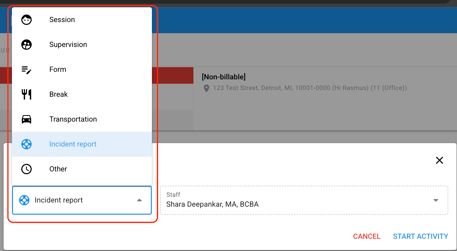
4. Click [Start Activity]
5. Once completed click [Finish Activity]
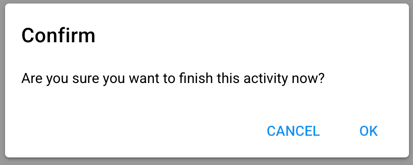
6. Confirm you want to finish the activity by clicking [Ok]
7. Complete your note. You may need to select the correct note template
8. Sign, if required
9. Your note will either automatically send to Camber or you'll need to click [Send Now] at the top of the activity to send to Camber.
When your activity displays the  status it has been transferred to Camber
NOTE: If your organization would like to set up activities to send for previous days, see organization set up, HERE.
Once this is set up, users can follow the instructions, HERE
Steps to Complete Staff Only Appointments from the Past
- Go to your [My Schedule] page and find the appointment on date you need.
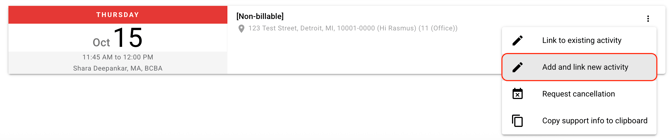
- Select the three vertical dots on the appointment and select [Add and link new activity].
- The activity type will automatically fill in based on the session mapping, along with the start and end time of the scheduled appointment. You will not be able to change the date or the staff member.
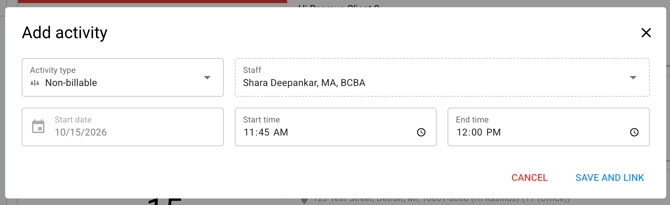
- Change your activity time if applicable.
- Select [Save and link].
- Fill out the session note or documentation - according to your company policy - just as you would for a same day appointment.
- The activity will be linked and can be completed as usual.