Enable Auto Import of Client Profiles
Currently, to enable this feature, you'll need to communicate with the Hi Rasmus and Lumary teams.
Enabling this setting will:
-
Automatically create Client Profiles in Hi Rasmus when the Client Profiles are created in Lumary.
- Not allow you to manually link clients to Lumary.
NOTE: This will not import the Business Unit. At this time, the business unit needs to be updated on each client individually in Hi Rasmus.
Steps to Enable Syncing Client Profiles
💡Only users with access to the integrations page can complete this task
Enabling this setting will:
- Allow continuous field updating (every 5 minutes) when changes are made in Lumary.
-
Allow the client profile fields to sync from Lumary to Hi Rasmus, except for the [Notes] and [Business Unit]. (The syncing fields will not be editable in Hi Rasmus).
NOTE: This will not sync the Business Unit. At this time, the business unit needs to be updated on each client individually in Hi Rasmus.
1. Navigate to [Integrations]. [Settings] >> [Organization] >> [Integrations]
2. Scroll to the very bottom of the page to [Additional integration settings].
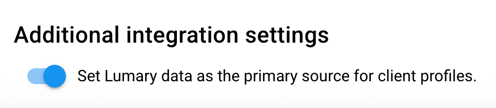
3. Toggle on the setting [Set Lumary data as the primary source for client profiles].
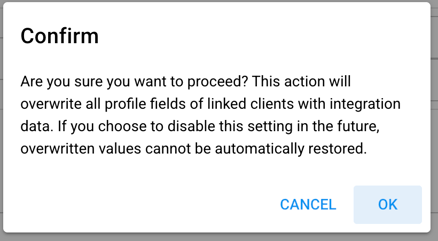
4. Confirm by pressing [Ok]
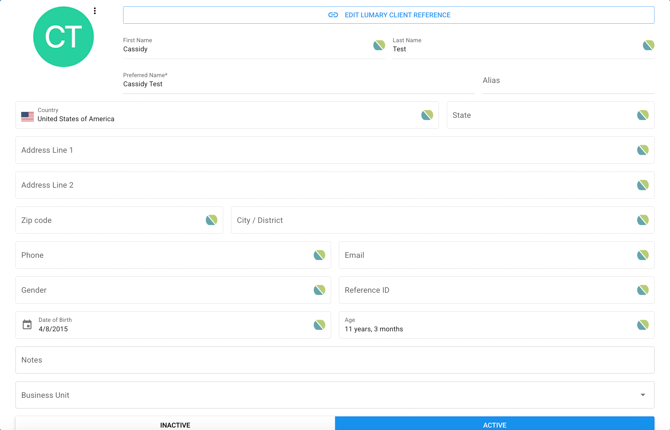
Now the fields on the client profile will sync to Lumary and cannot be edited in Hi Rasmus
See Client Profile Example: