📹Watch: How to Add a Credential Field to a Session Note Signature
Steps to Add a Credential Field to a Session Note Signature
1. Update Staff Information Fields
-
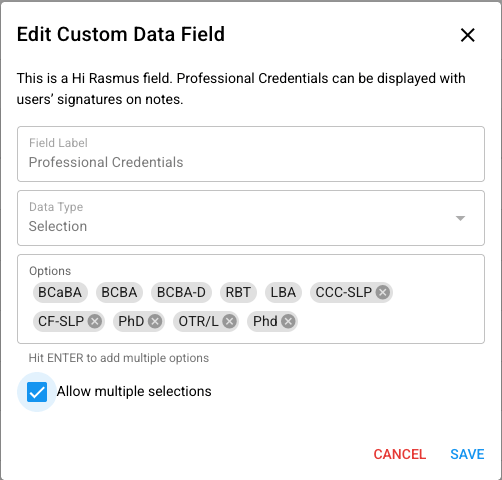
Navigate to [Staff Information]. On the left-hand navigation select [Settings] >> [Organization] >> [Staff Information]
-
There will be a Hi Rasmus field, titled [Professional Credentials]. This is a selection option. There will be default credential. Your organization can add more credentials if needed.
-
Select [Allow multiple selections] if you would like to show more than 1 credential on the signature (Example: BCBA, LBA)
-
Click [Save]
2. Update User Profiles
-
Navigate to [Users]
-
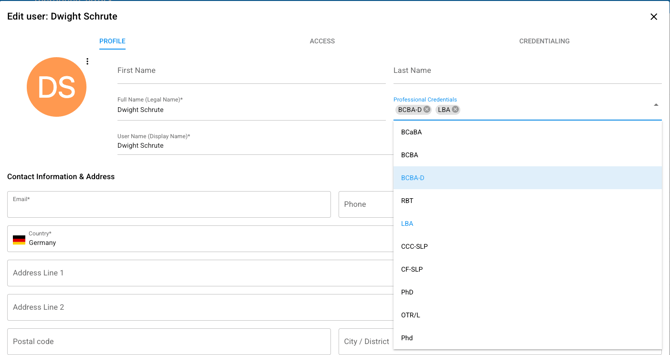
Click into a user's name
-
Select the Credential(s) and choose the correct Credential from the drop-down menu
-
Scroll to the bottom of the user profile, select [Save]
3. Update the Note Template
-
Navigate to the note template. Click [Settings] >> [Templates] >> [Notes]
-
Select the Note Template you would like to update
-
Check [Include signatory credentials]
-
Select [Save]
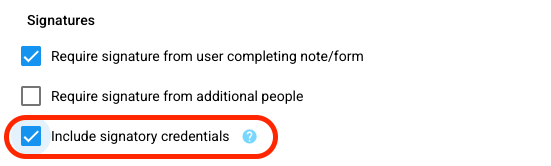
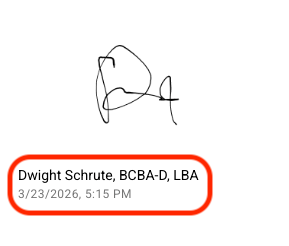
⚠️When you select [Include signatory credentials] this will trigger the legal name to display under the signature on that note template.
💡NOTE: To use [Professional Credentials] as a dynamic field.
Select [Dynamic Fields] >> [Staff Information] >> [Professional Credentials].
For more information on Creating Session Note Templates, click HERE
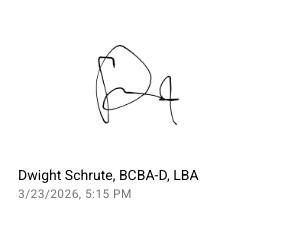
Now the user's credentials will appear within the signature: