Article Navigation:
- 🎥 Watch: Viewing Scheduling Groups in Timeline View
- How to Organize by Client Scheduling Group
- How to Organize by User Scheduling Group
💡 TIP: If you haven't already, learn how to set up your scheduling groups HERE
🎥 Viewing Scheduling Groups in Timeline View
How to Organize by Client Scheduling Group
- Select [Scheduling]
- Select [Overview]
- Select [Add Filter]
- Select [Client Information]
- Select the [Scheduling Group] you wish to view on the calendar.
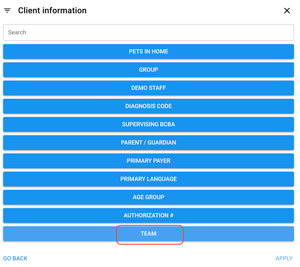
- Select the options you wish to view on the calendar
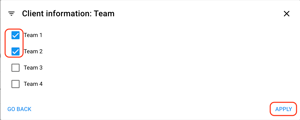
- Select [APPLY]
- Change the calendar view to [Timeline]
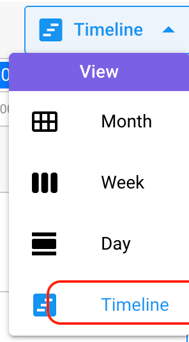
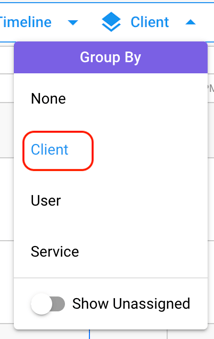
- Change the group by to [Client]. Be sure to toggle on [unassigned] if that is needed.
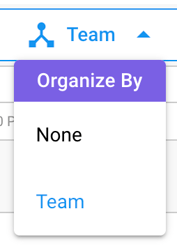
- Select the NEWLY ADDED Option, [Organize By] to the Scheduling Group you wish to view on the calendar.
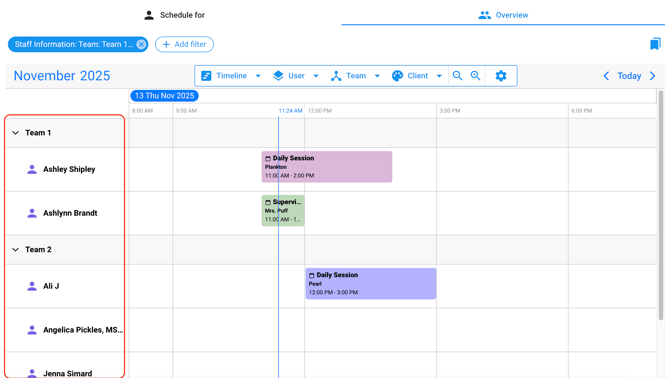
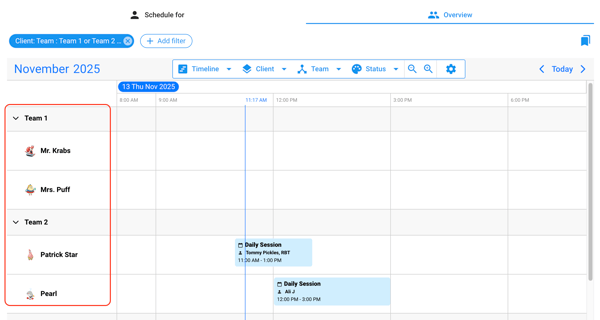
- The Scheduling Groups will now show up on the left hand menu bar with the options to collapse or un-collapse as needed.
How to Organize by User Scheduling Group
- Select [Scheduling]
- Select [Overview]
- Select [Add Filter]
- Select [Staff Information]
- Select the [Scheduling Group] you wish to view on the calendar
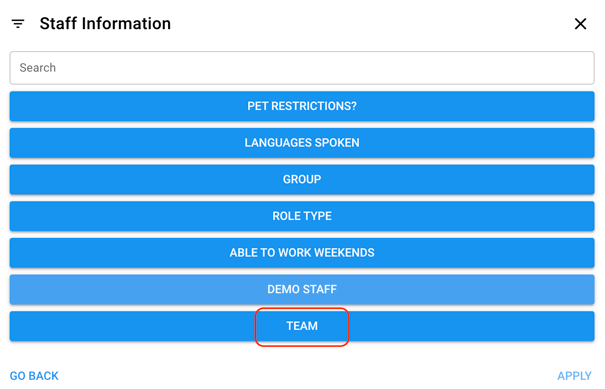
- Select the options you wish to view on the calendar
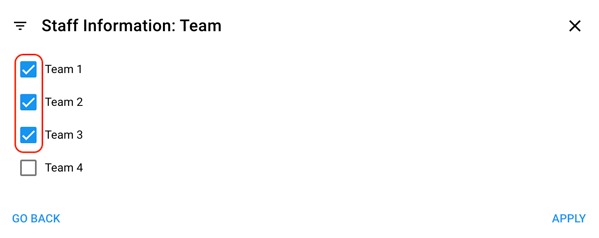
- Select [APPLY]
- Change the calendar view to [Timeline]
- Change the group by to [User]. Be sure to toggle on [Show Unassigned] if that is needed.
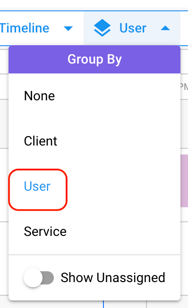
- Select the NEWLY ADDED Option, [Organize By] to the Scheduling Group you wish to view on the calendar.
- The Scheduling Groups will now show up on the left hand menu bar with the options to collapse or un-collapse as needed.