
In this article, you will learn how to:
Set Up Staff Activity Types
🎥Watch: Scheduling Custom Staff Activities
Steps to Set Up Staff Activity Types
Before scheduling a staff activity, make sure your activity types are configured.
- Select [Settings]
- Navigate to the [Staff Activity Types] section
- Review existing activity types listed
To add a new activity type:
- Select [Add Activity Type]
- Choose an [Icon] for the activity
- Enter the [Activity Type] name
- Toggle [Require a Note] on or off
- When enabled, the activity cannot be completed without a note attached
- When enabled, the activity cannot be completed without a note attached
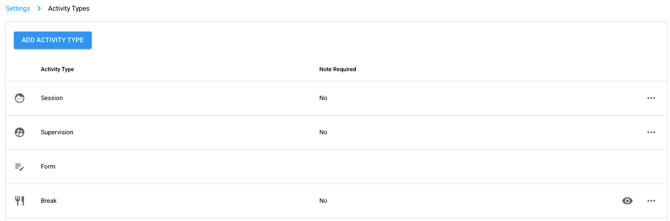
🗒️ Note: You can add as many activity types as your organization needs. The [Require a Note] setting applies any time that activity type is scheduled for any staff member.
Steps to Schedule a Staff Activity
- Navigate to [Scheduling]
- Select [Schedule For] to choose the staff member you are scheduling, or select [Overview] to view all staff schedules

- Navigate to the correct date on the calendar
- Click and drag on the calendar to create a new appointment, or double-click on the desired time slot
- At the top of the appointment panel, select [Staff Event]
- Selecting [Staff Event] removes the client field, as staff activities are not associated with a client
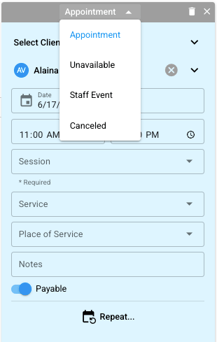
- Confirm or adjust the [Date]
- Adjust the [Time] as needed
- Select an [Activity Type] from the dropdown
- Optionally update the [Title] — the title can be customized while the activity type remains unchanged
- Optionally select a [Note Template]
- Add any relevant notes in the notes field (visible to anyone who can view the schedule)
- Toggle [Payable Event] on or off based on whether the activity should be counted as payable time
- Review the summary bar at the bottom of the panel — this confirms the staff member assigned, activity type, and key details before saving
- Select [Save Changes] to save the activity, or [Discard] to cancel
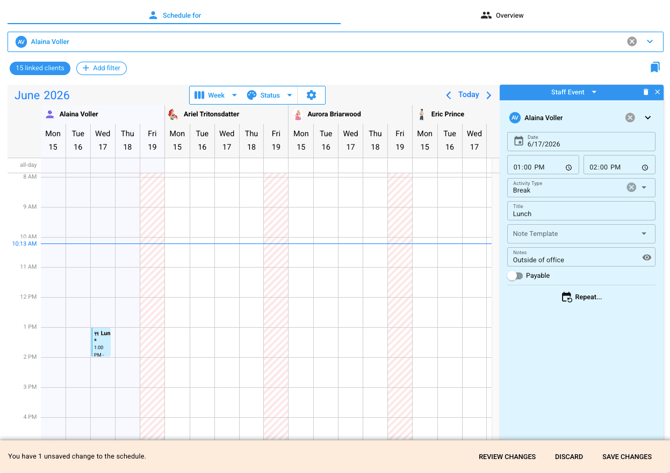
🗒️ NOTE: After saving, you can click back into the appointment at any time to review or edit the details. You will be prompted to either save or discard any changes made.