
Before creating custom session note dynamic fields in Hi Rasmus, it is best practice to ensure your custom session note objects are set up correctly in Lumary. Having your custom session note objects configured ahead of time will allow you to easily reference the API field name when creating or updating a custom session note dynamic field.
If you need assistance setting up your custom session note objects or identifying the correct API field names, please work with your Lumary team for guidance on the exact configuration required.
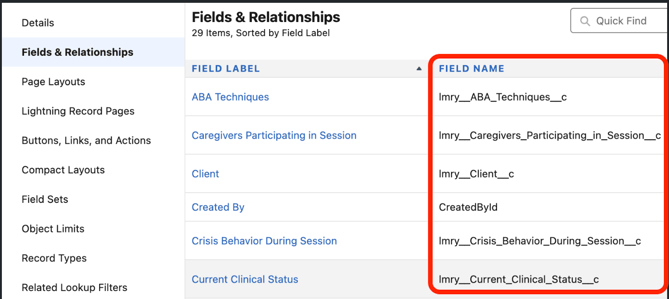
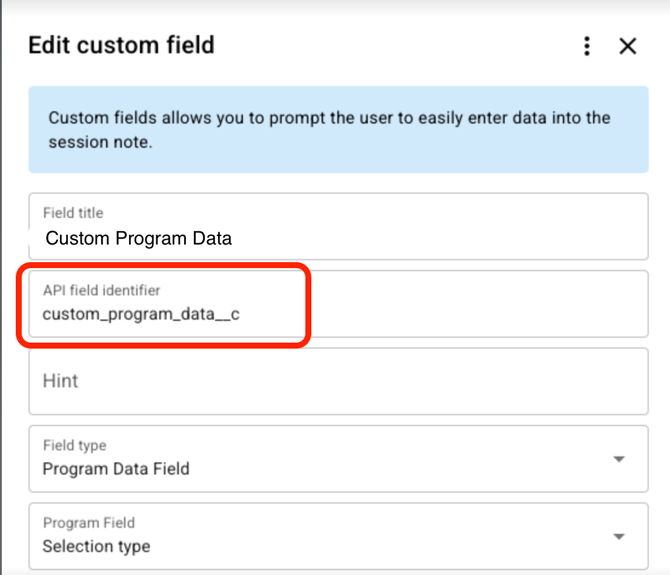
It is very important that the custom Lumary field name and the API field identifier in Hi Rasmus must match exactly**
Steps to Complete:
- Navigate to the Note Template
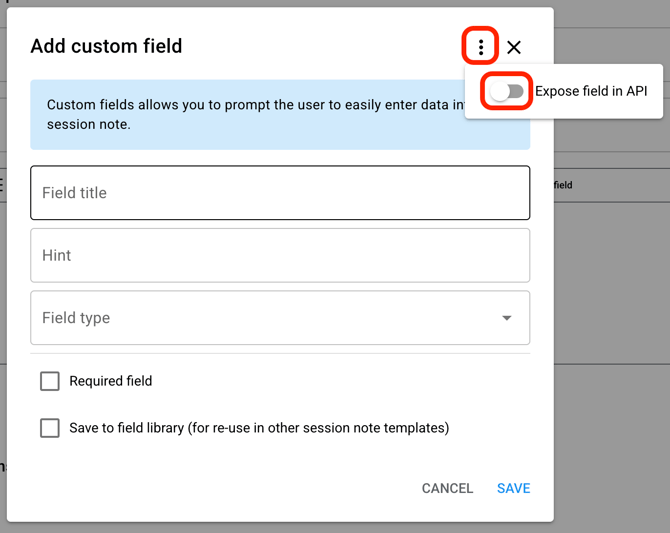
- Click [Add Custom Field] in the note template
- Click the 3 dots in the upper right-hand corner and toggle on [Expose field in API]
- Add a Field Title (this is specific to what your staff see in their Session Note)
- Add API Field Identifier - This must match Lumary's Field Name exactly. See Screenshots below on how it will look in Lumary and then in Hi Rasmus.
- This is optional, but feel free to add a hint for staff.
- Select [Field Type] 🚨If a program field in Hi Rasmus is set to free text, make sure the corresponding field in Lumary allows a high enough max character count or an error may occur.
- Check on [Required Field] 🚨Set the field as required in Hi Rasmus, not in Lumary. Requiring it on the Lumary side will throw an error if a note is sent over without that field filled in.
- Save in the section that makes the most sense. Recommendation is to save in [Appointments].