🔐 Access to the AI Audit Agent is a user privilege available to be turned on for Manager and Administrator roles to run audits.
To ensure access is permitted, select [Settings] >> [Organization] >> [User Privileges] >> [User Abilities] >> [Sessions].
Four columns are available:
- AI Audit Result — the latest audit outcome for that note
- Last Audit — when the note was last audited
- Audited — whether the note has ever been audited
- Audit Outdated — flags if the note has changed since it was last audited
Set Up Options for Reporting
Option 1: Adding the four columns to the reporting page.
- On the left hand-menu, select [Reporting] >> [Activities].
- Select the
 on the far right of the table.
 - A modal will pop up, scroll down and select the [AI Note Auditor].
- In the drop down menu, select [Select all] to bulk select all four columns for display.
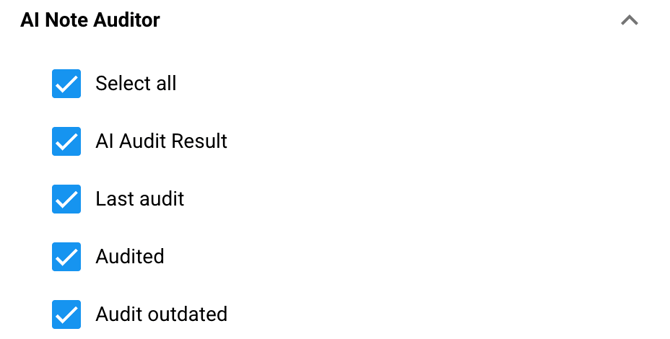
- Scroll down and select [Save] to add the columns.
💡 TIP: You can save this filtered view for future audits!
Select the  and click [Save Current View...].
Title the view and choose visibility using the checkboxes.
Option 2: Using the [+Add filter] button to filter in only sessions that meet the selected criteria into the reporting page.
- On the left hand-menu, select [Reporting] >> [Activities].
- Select the
 button on the left side above the table.
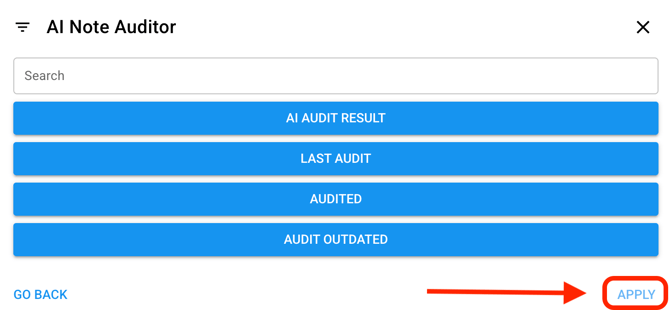
 - A modal will pop up, select [AI Note Auditor…].
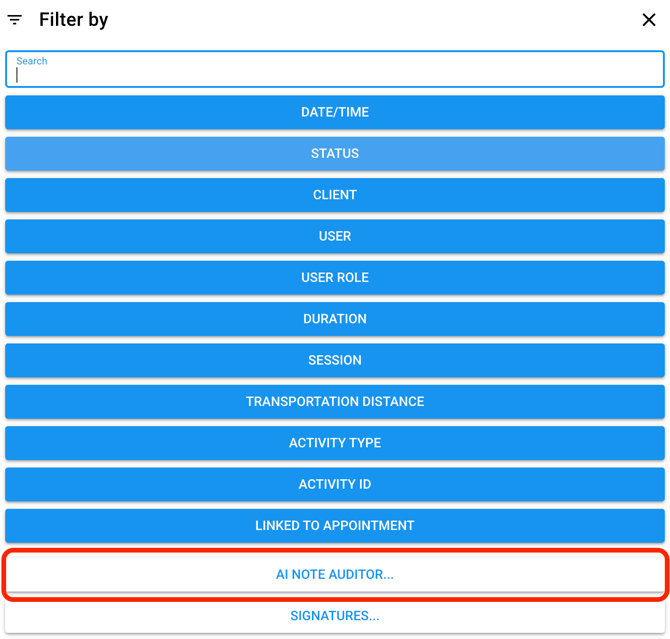
- Select from the list of four filter options:
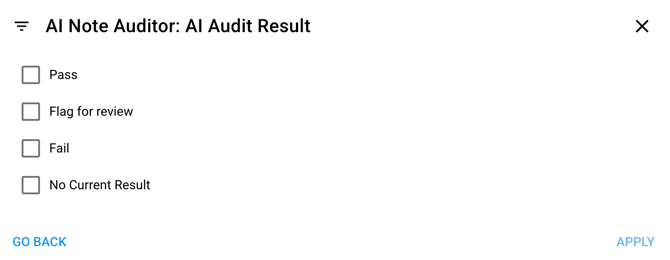
- Select [AI Audit Result] to filter in sessions that meet the selected criteria. Once selections have been made, select [Apply].
- Select [Last Audit] to filter in sessions from a specific period of time, or a custom range.
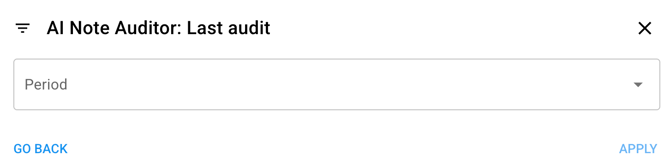
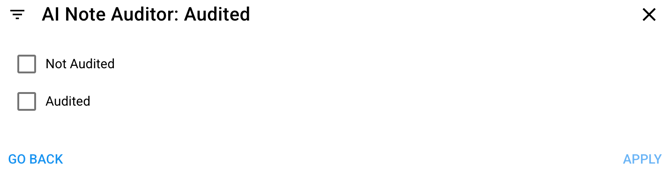
- Select [Audited] to filter in sessions that were either audited or not audited. Once a selection has been made, select [Apply].
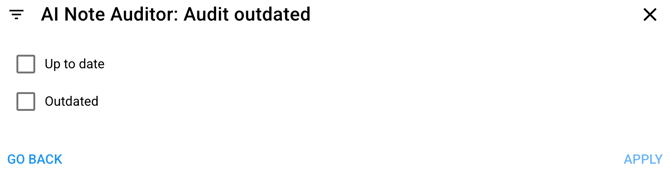
- Select [Audit Outdated] to filter sessions in which the audit is up to date or outdated. Once a selection has been made, select [Apply].
- Select [AI Audit Result] to filter in sessions that meet the selected criteria. Once selections have been made, select [Apply].
- After all selections have been made, select [Apply].
💡 TIP: You can save this filtered view for future audits!
Select the and click [Save Current View...].
Title the view and choose visibility using the checkboxes.
Reading the AI Note Auditor Results:
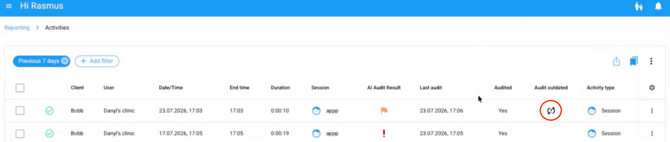
The examples below walk through what a filtered view could look like using the four columns and what each column/ field represents so you know how to read the data at a glance.
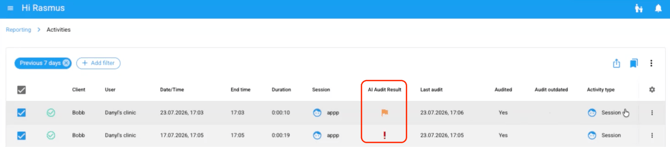
[AI Audit Result] Column:
- Shows the outcome of the AI audit review: Passed, Flagged, or Failed. Blank means the session hasn't been reviewed yet.
- In the example below, the first session was flagged (orange flag icon) and the second failed (red exclamation mark).
[Last Audit] Column:
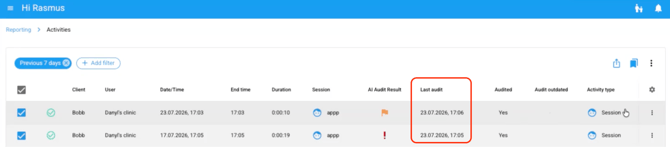
- Shows the date and time each session was last reviewed by the AI audit agent, as seen in the example below.
[Audited] Column:
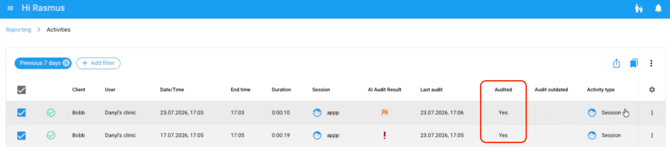
- Shows if the session was audited (Yes/No).
- In the example below, we see both sessions were audited, as indicated by “Yes”.
[Audit Outdated] Column:
- Shows whether the session has been updated since its last audit, indicated by an icon. Blank means no update.
- In the example below, the first session was updated; the second was not.