
Watch or read the instructions below to learn Hi Rasmus' functionality to sign session notes. We recommend contacting your child's clinician if you have specific questions.
📹Watch: Signing Session Notes as a Parent
Steps to Sign Notes:
1. Login to Hi Rasmus
2. Click on the "bell" notification in the top righthand corner of the screen.
3. Click the individual notification or click [view all]
4. Navigate to the action required note that needs a signature.
5. Scroll to find the signature location on the note that reads "pending signature"
NOTE: Your name might be below the [pending signature] or it could read more general like [Caregiver] or [Parent].
Follow up with your child's clinician if you have additional questions!
6. Use the mouse or touchscreen to complete your signature
7. Click [Sign Now] when finished
8. The action is now completed for that note!
I need to sign a note, but I didn't receive a notification, what do I do?
We always recommend reaching out to your child's clinician for the date and time of the notes that need to be signed.
1. Click the [History] tab
NOTE: The [History] tab is a user privilege, if you do not have access to this you will need to contact your child's clinician.
2. Select the note that you need to sign
3. Scroll to the signature location at the bottom of the note. If you do not see this location, click the arrow in the far right corner to expand, see screenshot below:
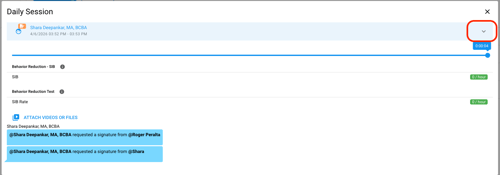
4. Scroll to find the signature location on the note that reads "pending signature".
NOTE: Your name might be below the [pending signature] or it could read more general like [Caregiver] or [Parent].
Follow up with your child's clinician if you have additional questions!
5. Use the mouse or touchscreen to complete your signature
6. Click [Sign Now] when finished
7. The action is now completed for that note!