
By Default, Hi Rasmus follows the Time zone of the user's device settings. To learn more about Time Zone tips and device settings, see below or click HERE.
Starting 10/14/2026, all users can set their own time zone within Hi Rasmus. To learn more about this, see below or click HERE
Hi Rasmus User Time Zone Setting (Live 10/14/2026)
This feature is opt-in for users, meaning each user will need to set this up for themselves. Currently, there is no Hi Rasmus feature to set organization-wide time zones for all users.
NOTE: If users choose not to change their time zone, Hi Rasmus will default to the device time zone.
🎥: Watch: How to Change Time Zone Settings in Hi Rasmus
Steps to change time zone settings in Hi Rasmus
1. Log into Hi Rasmus
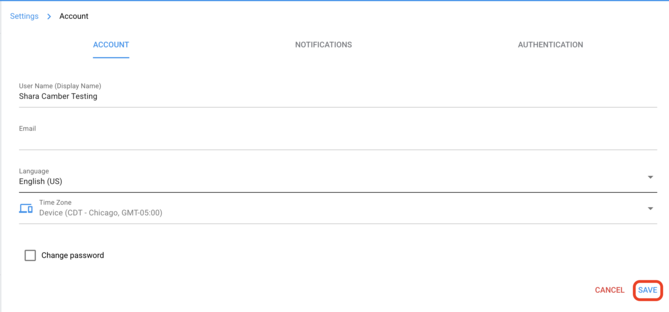
2. Navigate to [Account]
3. Click into the [Time Zone] section
4. Choose the time zone you would like.
NOTE: You can favorite multiple time zone's by hovering over the time zone and clicking the heart. in the photo below both CDT - Chicago and GMT-11 - Midway time zone's are favorited.
NOTE: If you select ‘Your device’s time zone’ and save, Hi Rasmus keeps that time zone even if your device’s time zone changes later. To follow your device’s time zone again, click the ✕ and save.

5. Click [Save] at the bottom of the page.
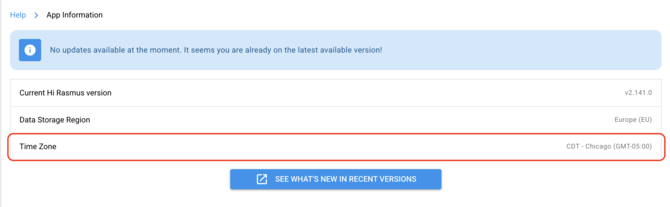
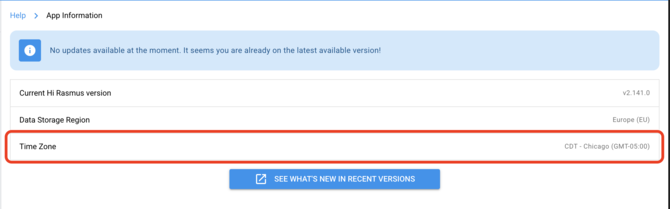
6. Your updated time zone will be reflected in [Account] and [App Information] ([Help] >> [App Information])
Time Zone Tips and Device Settings
Hi Rasmus reads date format, time format, and time zone directly from your device's system settings. If dates or times look wrong inside Hi Rasmus (day and month swapped, timestamps shifted by an hour, session times that don't match the clock), the cause may be a device-level setting rather than a setting inside Hi Rasmus. Unless, you have opted into changing your Hi Rasmus timezone. (See above for more information).
There are two device-side culprits to check: language/region (which controls date and time format) and time zone (which controls the actual time shown).
💡 On iOS in particular, selecting any non-US English language variant (such as English [Australia] or English [UK]) will override your other date and time format preferences, even if those preferences appear correct.
ℹ️ Both the city and the exact time zone (e.g., GMT-5 Eastern, not GMT-6 Central) need to match what's expected. Mismatches here are the most common cause of timestamps appearing an hour off, especially after travel, after a SIM change, or on devices that have never had location services enabled.
To check language and region on an iOS device:
- Open the device [Settings] app.
- Select [General] >> [Language & Region].
- Under [Preferred Languages], remove any language other than the one matching your intended region (e.g., keep only English (US)).
- Confirm [Region] is set to your intended country.
To check time zone on an iOS device:
- From [Settings], select [General] >> [Date & Time].
- Confirm [Set Automatically] is toggled on. If it is on, check that the city listed below it matches your actual location.
- If the city is incorrect, toggle [Set Automatically] off, then select [Time Zone] and search for the correct city. The city you choose must sit inside the time zone you actually want (e.g., choose New York for Eastern Time, not a city in a neighboring zone).
- Toggle [Set Automatically] back on once the correct city is confirmed.
To check time zone on an Android device:
- Open the device [Settings] app.
- Select [System] >> [Date & time] (path may vary slightly by manufacturer).
- Confirm [Set time zone automatically] is enabled and that the displayed zone matches your location. If it does not, disable it and select the correct zone manually.
Once your device settings are updated, return to Hi Rasmus and verify that dates, times, and time zones are now displaying as expected.
If you manage devices for your organization, we recommend looping in your IT lead, as language, region, and time zone settings are often configured at the device-provisioning stage.
If the issue persists after adjusting these settings, Request Support and include the device model, OS version, the time zone shown on the device, and a screenshot of the incorrect display.