
Creating a Report
Editing a Report
Freeze Report Data
Send to Review
Publish and Lock Report
Archive Report
Report Statuses
Settings and Privilege Considerations
🎥: Watch: Report Features Update
💡For Manager-level users, there are no changes to the organization wide Report Templates.
💡You can edit all report sections directly, without opening each one individually. Your changes will automatically save as you work.
Steps to Generating a Report for a Client:
1. Navigate to Add a report to your client. Select the Client's name from the dropdown menu. Select [Progress] >> Click the tab [Reports] >> Click [Add New Progress Report] >> Select your report template from the menu
2. Update the Report Title if needed
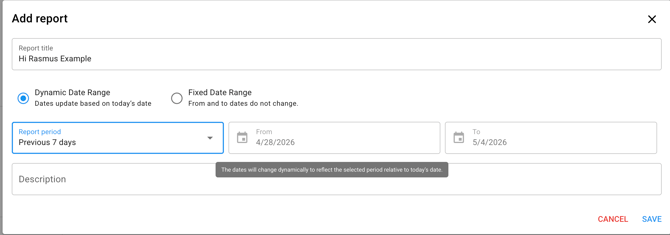
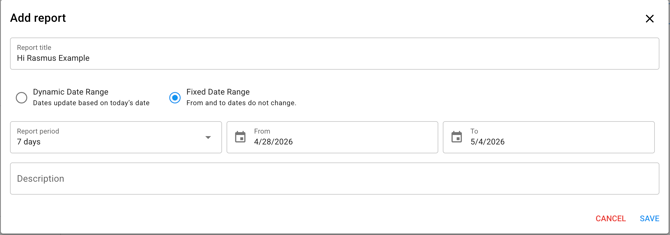
3. Select [Dynamic Date Range] or [Fixed Date Range]
💡The [Dynamic Date Range] will update the data based on today's date. For example, if you select the dynamic date range and select the [Report Period] to [Previous 7 days] on a Monday, the report period will be from the previous Monday to this Monday. But when you come back to review the report on a Wednesday, the report period will now be from Wednesday to Wednesday.
💡The [Fixed Date Range] will prompt you to select fixed dates. The data will no longer update. For example. If you select [Report Period] to [Previous 7 days] select dates 4/28- 5/4, the report will still display data from the selected dates.
4. Add a description if needed
5. Select [Save]
Editing a Report
Report Layout
To make any adjustments to the layout of the report, use the [Page Layout Editor]
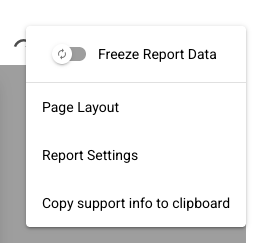
1. Select the three vertical dots in the top left corner
2. Select Page Layout
3. You'll be able to see an overview of all of your report sections, with the ability to reorder sections by selecting the grid icon to the left of the section header
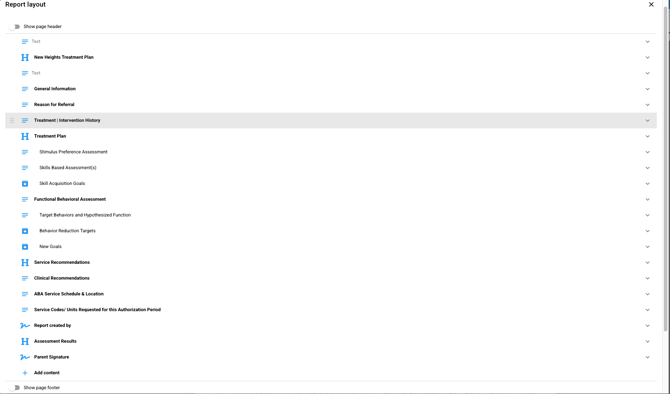
4.Selecting a section will allow you to edit the headers, modify the section settings or remove a section entirely
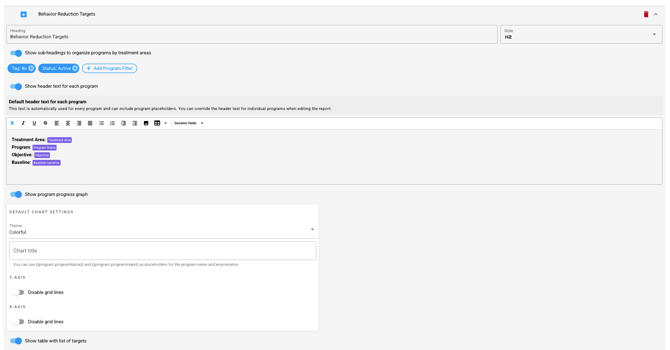
Treatment Progress Sections and Graph Settings
To modify a Treatment Progress Section, hover over the program you want to edit.
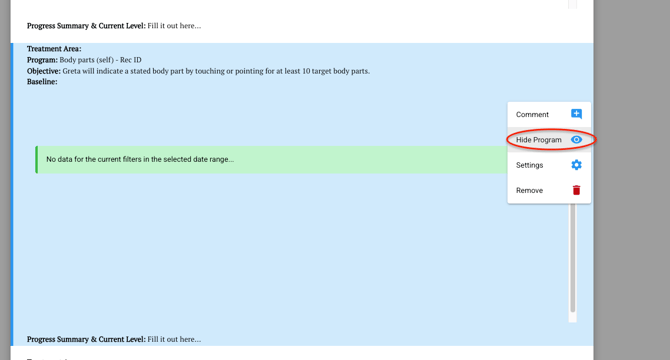
You will be able to hide programs or edit the settings for your graph.
Freeze Report Data
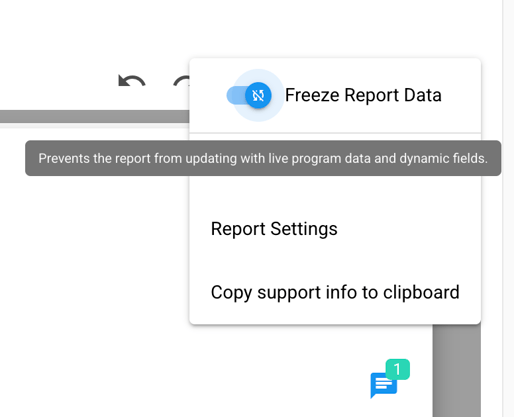
This allows users to pause all data syncing across the report. This includes data on the graph that's collected after the [Freeze Report Data] was enabled, client information field updates, and program data field updates. The [Freeze Report Data] icon will be indicated next to the report status.
For Example: If the report in the draft status does not have the [Freeze Report Data] selected, the icon will appear like this:

However, if the [Freeze Report Data] is selected, the icon will appear like this:

Steps to freeze report data
Click the three dots in the upper righthand corner of the report you are working on.
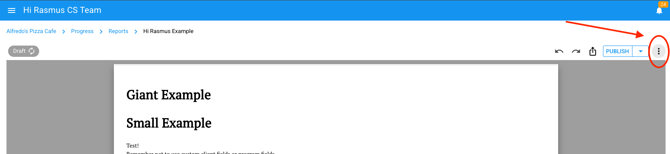
Toggle on [Freeze Report Data]
The icon will appear next to the report status indicating that the data is no longer syncing.
Steps to Send to Review
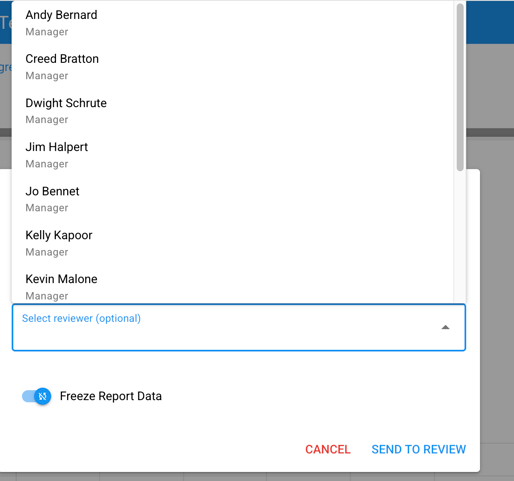
Now, you can choose a user to review your report. The user will be notified that there is a report for them to review.
💡 The users shown in the [Send to Review] dropdown include all users who have access to the client in any user role, including Parent.
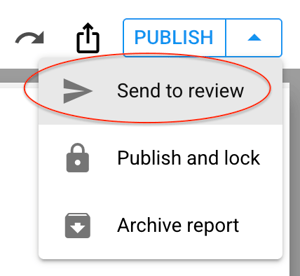
1. Click the [Send to Review] option in the status dropdown.
2. Select a user to review the report and click [Send to Review].
3. The report status icon will change to [In Review].

4. The user who was tagged to review will be notified. When they click the notification, it will take them to the report.
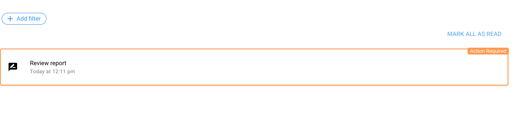
5. The reviewer can review as needed. When the review is finished, they can select [Publish].
6. Once the report is published, the review notification will be marked as complete.

Steps to Publish and Lock
We'd recommend to Publish and Lock your Report after its been through your internal review process.
You can publish your report when its in any status (draft, in review, published) click the arrow to the left of the three dots in the upper right hand corner of the screen.

Click [Publish and Lock] from the dropdown.
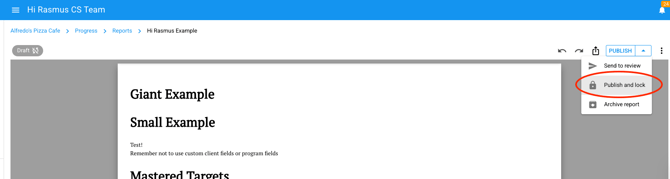
A pop-up will appear, reading that you can save a copy of the report in the client Files. Keep this toggled on to save. Here you can change the name of the Filename as well.
Click [Publish and Lock]
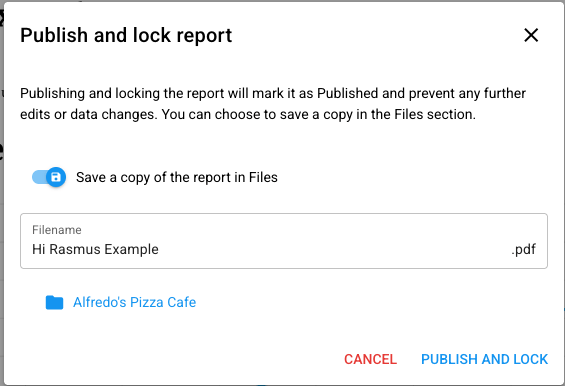
NOTE: Publish and Lock will freeze the data regardless of it being toggled on or off.
Now your report will be in the [Completed] status and a copy will be saved in the client's file.
If you need to make edits after you've published and locked this report, you will need to revert it back to the [Draft] status.
NOTE: If you revert back to draft, you have the to option to unfreeze the data, the default is for the data to remain frozen.
Steps to Archive Report
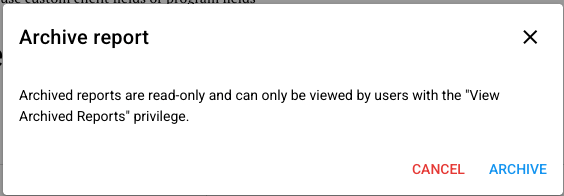
Archive reports are read-only reports that cannot be edited unless they are reverted back to a draft status.
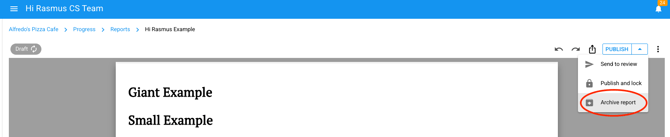
You can archive your report when its in any status (draft, in review, published) click the arrow to the left of the three dots in the upper right hand corner of the screen.
Click [Archive Report]
A pop-up will appear, if you'd like to continue click [Archive]
The report status will be changed to [Archived]

Understanding the Report Status Functionality
You can select from several status options by clicking the status bar in the top right of the report editor.
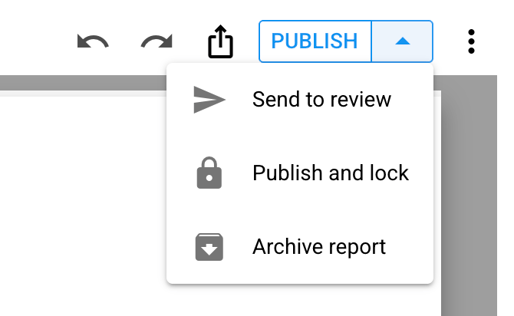
[Draft] - In draft status, changes can be made to the report. The report will continue to sync information from the system unless you freeze the report data. Comments can be made on the report. Can be viewed by users with the [View Draft Reports] privilege.
[In Review] - This status is for internal use. Users can select a user in the system to review their report. The user will be notified that they need to review a report. In this status, changes can still be made to the report. The report will continue to sync information from the system unless you freeze the report data. Comments can be made on the report as well. Can be viewed by users with the [View Reports in Review] privilege.
💡 When a report is sent for review, the assigned user receives a notification. This notification is dismissed once the report is published.
[Published] - This status is for internal use. It is the indicator that the report is done with the review process. Data will still be updated during this status. Edits and comments can be made during this status if needed.
[Publish & Lock] - In this status, the data will not be updated and no edits can be made to the report. *If you need to make edits, revert the report back to the [draft] status.
A PDF version of the report will be saved to files if you choose to do so.
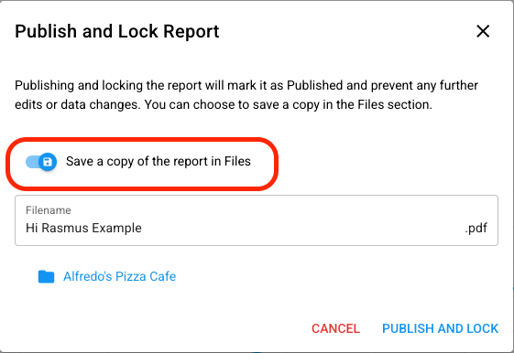
NOTE: Depending on the size of your report, saving a PDF copy may take several minutes.
[Completed] - Locking the report moves it from the [Published] status to [Completed]. No edits or comments can be made to the report in this status.
[Archived Reports] - Read-only reports, no edits can be made. Reports in this status can be viewed by users with the [View Archived Reports] privilege.
Setting and Privilege Considerations
The user privilege options for reports remain largely unchanged.
Navigate to [Settings] and click [Organization] then [User Privileges]. Report privileges are located under [User Abilities] in the [Progress Section].
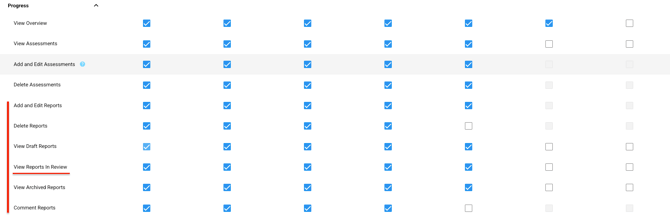
💡 There is a privilege for viewing reports in the Review Status. Any user who will be reviewing reports needs this privilege.
Notification settings can be managed by user role. There is a notification setting for [Report Review Request]. We recommend turning this on and locking it for any user role who will be reviewing reports.
