
Part 1. Using Custom Fields to Support Client-Staff Matching
Part 2. Setting Up and Managing Custom Fields
Part 1. Using Custom Fields to Support Client-Staff Matching
These fields allow your organization to define key criteria that support thoughtful and appropriate client-to-staff matches. By capturing details such as but not limited to; languages spoken, experience levels, pets in-home, or other potential barriers, you can filter and assign staff more intentionally. This helps reduce scheduling conflicts, improve service quality, and ensure clients are paired with clinicians who best meet their needs.
📹 Watch for a step-by-step walkthrough of how these fields impact matching in the scheduler.
Part 2. Setting Up and Managing Custom Fields
Custom fields are created within your Organization [Settings] and can be tailored to reflect the criteria most important to your team when scheduling. Once established, these fields can be completed directly within each client and staff profile to ensure accurate, up-to-date information. Keeping these profiles maintained allows your scheduling tool to effectively coordinate client-to-staff matches.
📹 Watch the setup video for a tutorial on creating custom fields and adding them to client and staff profiles.
Setting up Client Information Fields
- Use the left hand menu to navigate to [Settings] >> [Organization] >> [Client Information]
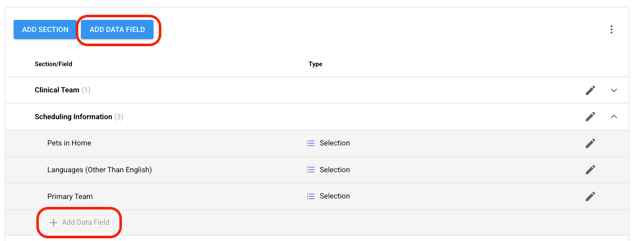
- To create a section with scheduling criteria, select the [Add Section] button
- Name the section (e.g., “Scheduling Information”)
- Select [Save]
- To create scheduling criteria within this new section, select the [+ Add Data Field] located just below your new section name or select the blue button [ADD DATE FIELD]
-
-
-
A pop up model will appear.
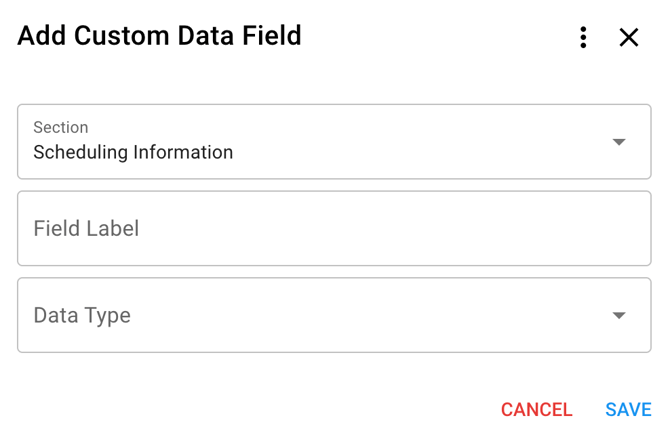
- First, make sure the new section is selected from the drop down menu (e.g., “Scheduling Information”)
- Next, in the section [Field Label] type in a name for that specific criteria (e.g., “Experience level”)
- Last, in the section [Data Type], choose an option from the drop down menu.
-
- If creating [Selections], type in each option (e.g., “Level 1 RBT”, “Level 2 RBT” etc). ⚠️ Note: Press [Return] or [Enter] on your keyboard after entering each selection option.
-
Completing Client Information Fields in the Client’s Profile
- Use the left hand menu to navigate to the [Clients] page
- Select a client from the list
- Select the [Client Information] tab and scroll down to the [Scheduling Information] section
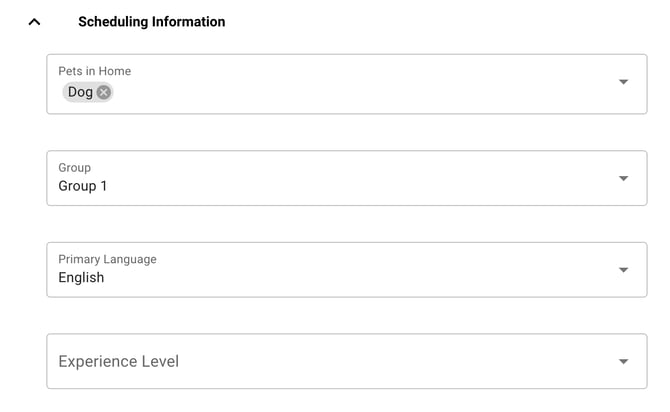
- Fill in each custom data field for the client
⚠️ Note: It is recommended to keep these fields up to date within your client’s profiles to assist with staff-to-client matches as criteria change.
Setting up Staff Information Fields
- Use the left hand menu to navigate to [Settings] >> [Organization] >> [Staff Information]
- To create a section with scheduling criteria, select the [Add Section] button
- Name the section (e.g., “Scheduling Information”)
- Select [Save]
- To create scheduling criteria within this new section, select the [+ Add Data Field] located just below your new section name or select the blue button [ADD DATE FIELD]
-
-
-
A pop up model will appear.
- First, make sure the new section is selected from the drop down menu (e.g., “Scheduling Information”)
- Next, in the section [Field Label] type in a name for that specific criteria (e.g., “Experience level”)
- Last, in the section [Data Type], choose an option from the drop down menu.
-
- If creating [Selections], type in each option (e.g., “Level 1 RBT”, “Level 2 RBT” etc).
⚠️ Note: Press [Return] or [Enter] on your keyboard after entering each selection option.
-
Completing Staff Information Fields in the Staff’s Profile
- Use the left hand menu to navigate to [Settings] >> [Organization] >> [Users]
- Select the staff from the list
- Select the [Profile] tab and scroll down to the [Staff Information] section
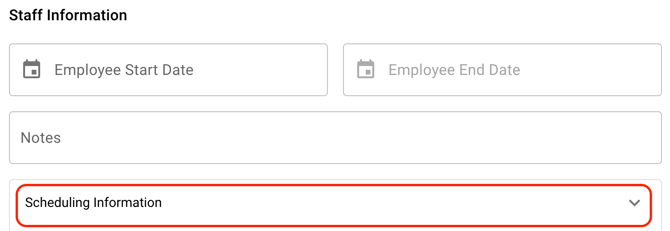
- Select the custom section you created (e.g., “Scheduling Information”)
- Fill in each custom data fields for the staff
- Do this for each staff, as necessary for your Organization
⚠️ Note: It is recommended to keep these fields up to date within your staff’s profiles to assist with staff-to-client matches as criteria change.
💡Other considerations to assist in filters for creating scheduling for staff and clients: