
Creating a program just got simpler! These updates are part of a bigger plan designed to make your clinical work more efficient, more flexible, and more insightful.
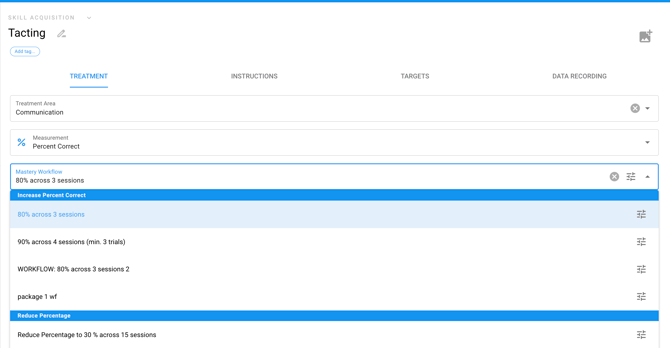
- [Measurement]: When a user selects a measurement type, it will automatically populate a list of workflows that use that measurement type - eliminating the guesswork when selecting the right type of workflow for a program! It will also default all program graphs based on the type of measurement selected.
Keep in mind: Workflows will still be optional! - Add the [Mastery Workflow] on the [Treatment] tab.
- NEW Terminology on y-axis in Graph Settings
Data Recording Tab Features:
- Select the correct [Prompt Level Template]
- Change Graph Settings, if needed. Now, the y-axis will default to the [Measurement] selected from the [Treatment Tab]
Example: [Percent Correct] was selected as the [Measurement]
Measurement
When creating a program, the user will now be prompted to add 1 of 4 options from the [Measurement] drop-down. Selecting the measurement determines the graph settings and the workflow options for that program.
The drop-down includes:
- Percent Correct
- Frequency
- Rate*
- Duration*

*If [Rate] is selected, click on the 3 lines on the far right within Measurement and select 1 of the 2 options in the Measurement Details.


*If [Duration] is selected, click on the 3 lines on the far right within Measurement and select 1 of the 4 options in Measurement Details.


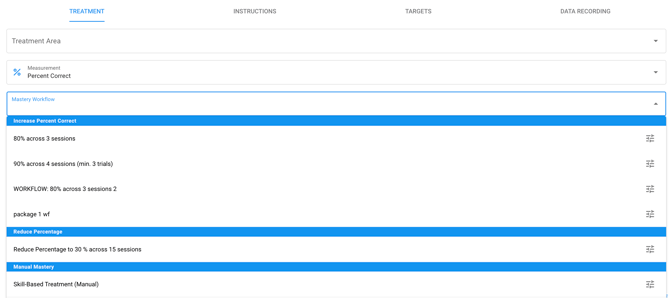
- Once the correct [Measurement] is selected for your program, the user will select a [Mastery Workflow], and the workflow options will correspond to the correct measurement selected.
- For instance, if [Percent Correct] is selected, only workflows with a percent correct will be options to select from.
- If [Frequency] is selected, only frequency mastery workflows will be options.
- Below, a Percent Correct Measurement was selected; the drop-down for Mastery Workflow only includes the option to increase or decrease the percentage, as well as a manual mastery option.
For more information on Creating Mastery Workflows, click HERE
TIP: If you set your Program Type to [Skill Acquisition], [Interval], or [Task Analysis], the [Measurement] will default to [Percent Correct].
If you set your Program Type to [Frequency], the [Measurement] will default to [Frequency].
If you set your Program Type to [Duration], the [Measurement] will default to [Duration].
How does this impact the graph settings?
Terminology on y-axis Graph Settings
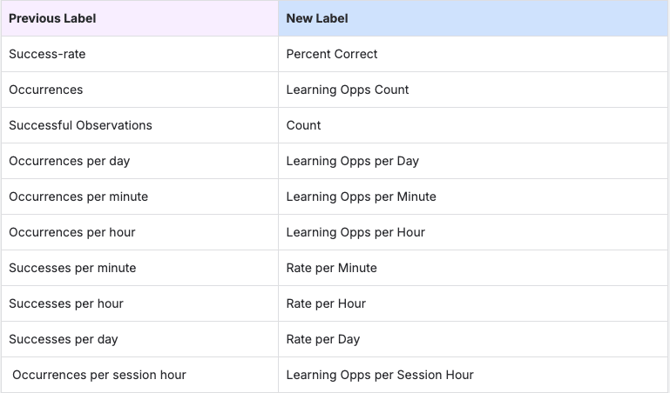
- Now the graph settings will default to the graph associated with the [Measurement] selected.
- For instance, if [Percent Correct] is selected as the [Measurement] the default y-axis in the graph settings is [Percent Correct].
