
What do I Need to Know As a Manager-Level User?
When the user completes the session note and they are either the only required signature on the note OR there is no required signature now when they sign, the note will immediately be sent to the practice management system.
Important to know ⚠️
💡 If you would like to opt out of using this feature, Manager-level users can turn this feature off in User Privileges >> [Activities] >> [Allow Sign & Send to PM]
-
If this is a feature you would like to utilize, see Option 1 below to make sure your note template is set up correctly.
-
If you already require additional signatures on your note templates, your process will remain the same and no action is required. See Option 2a.
-
If you need a signature from someone who is not a user in the system (i.e. a parent), there is action required. See Option 2b.
Option 1: Only require a signature from the user completing the session note or no signature required.
If your team wants the user completing the session note to send the note to the integration right away, follow the steps below.
When the User Signature is Required:
🎥 Watch: Sign and Send with Required Signature:
Steps to take in the Note Template:
1. Navigate to the note template from the navigation menu on the left: [Settings] > [Templates] > [Notes]
2. Click into the Note Template you would like to edit.
3. In the [Signatures] section, select [Require signature from user completing note/form].
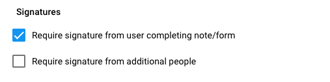
Now, users will be required to sign, and it will immediately send the note to the practice management system (PM).
Set up to Follow without Required Signature
📹 Watch: Sign and Send without Signature
Steps to take in the Note Template:
1. Navigate to the note template from the navigation menu on the left: [Settings] > [Templates] > [Notes]
2. Click into the Note Template you would like to edit.
3. In the [Signatures] section, unselect [Require signature from user completing note/form].
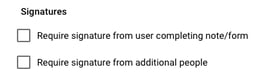
Now, users will be required to sign, and it will immediately send the note to the practice management system (PM).
Option 2a: The user needs to collect an additional signature from another Hi Rasmus User before sending to the integration 🔍
🎥Watch: Sign and Save with Additional Signature from Hi Rasmus User
If your team includes an additional signature on the note template from a Hi Rasmus User, this could be a parent or supervisor, see below:
Steps to take in the System:
1. You'll need to set up a Client Information Field [User] type in order to add an Additional Required Signatory.
💡For more information on Custom Client Information Fields, click HERE
2. Go to the Client's Profile and add the Hi Rasmus user to this Client Information Field.
💡For more information on collecting additional signatures, click HERE
Steps to take in the Note Template:
1. Navigate to the note template from the navigation menu on the left: [Settings] > [Templates] > [Notes]
2. Click into the Note Template you would like to edit.
3. Select [Require Signature from Additional People] in the note template ✍️✍️
4. Add an [Additional Required Signatories] from the dropdown selection. This will prevent the note from being sent until this signature is collected. 🚫📤

5. Once the additional signatures are collected on the session note, a user will need to send the session to the PM system
Option 2b: The user needs to collect an additional signature from a non-user before sending to the integration 🔍
🎥Watch: Sign and Save with Additional Signature (non-user)
If your team includes an additional signature on the note template from a person who is not a user in Hi Rasmus, see below:
What to do in the System:
1. Set up a Client Information Field with the [User] type in order to add an Additional Required Signatory.
2. Leave the Client Information Field blank. This will require a signature on the note template but it will not assign a specific Hi Rasmus user. This allows the person completing the note to obtain a signature from someone in person from their device.
💡For more information on collecting additional signatures, click HERE
For more information on Custom Client Information Fields, click HERE
3. Give users the User Privilege "Sign Any Signature Request". (User Privileges > Sessions > Sign Any Signature Request).
💡For more information on user privileges, click HERE
What to do in the Note Template:
1. Navigate to the note template from the navigation menu on the left: [Settings] > [Templates] > [Notes]
2. Click into the Note Template you would like to edit.
3. Select [Require Signature from Additional People] in the note template ✍️✍️4. Add an [Additional Required Signatories] in the dropdown selection. This will prevent the note from being sent until this signature is collected. 🚫📤
5. An additional signature box will pop up but not be assigned to a specific user. The required signatory can then sign from a users device. Once the additional signatures are collected on the session note, a user will need to send the session to the PM system
Frequently Asked Questions (FAQ) |
|
| Question: | Answer: |
| I already have at least 1 additional signature required on the note templates after the BT completes their note and signs. How will this feature change the workflow for those additional signers? |
This will not change anything for the additional signers. They will continue to sign and press the [Send Now] button at the top of the session note. See photo below:
|
| I don't want my BTs to send their notes to the integration right away. I don't have any additional required signatures set up on the note template. What steps do I need to take? |
Add an additional required signature to the note template. To learn more about note templates, see HERE This way the note will not send over to the integration until all signatures are completed. The last signer will sign and press the [Send Now] button at the top of the session note. See photo below:
|
| Our session notes are sent to the integration without signatures. How will this change our process? | Notes will continue to send without signature; there will be no change to the process. |
| My BT's signature is the only required signature on the note template. They use the [+Add Signature] feature to collect the parent signature. The parent is not a user in the system. What steps do I need to take? |
You will follow the steps in Option 2b in the above article.
|
