
In this article, you will learn about how to create the different report template sections. These Template Sections can be used to build reports, allowing easier bulk updating when report section requirements change.
Using Report Section Templates
TIP: We recommend being descriptive when naming your section templates so that you easily know which section to use when building reports!
To begin creating Report Section Templates navigate to Settings-- Templates-- Reports. Select Report Section Templates.
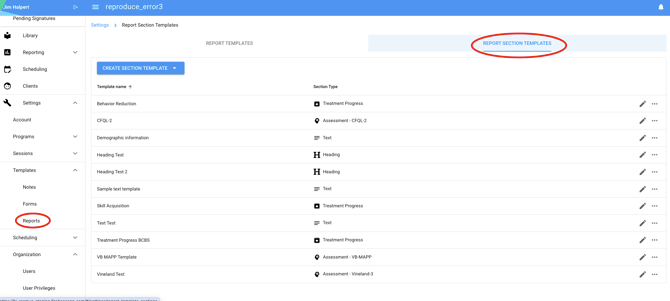
📹 Watch: Create Heading Template
Steps to Create Heading Template:
- Select Heading from the drop down menu.
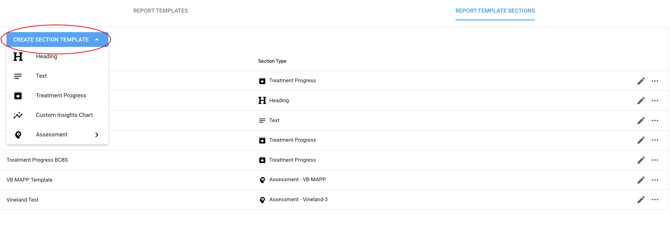
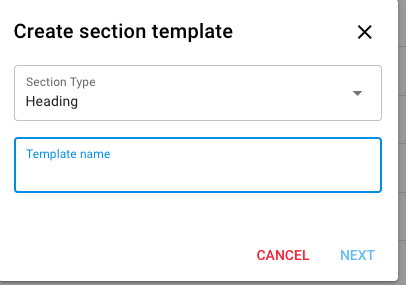
- Give your Heading template a name and click "Next".
- Enter the desired information for your heading template.
- Select Save.
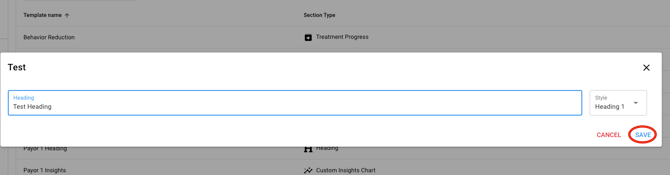
- Once saved, your Heading section template becomes available in the list of Template Sections and as an option when building a Report Template.
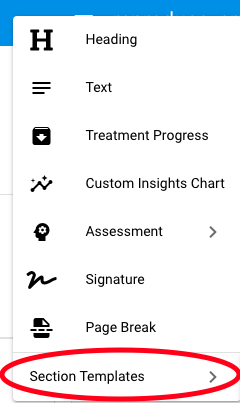
NOTE: You can have multiple templates for each section to meet your organizations reporting needs.
📹 Watch: Create Treatment Progress Template
Steps to Create Treatment Progress Template
-
Select Treatment Progress from the dropdown menu within report template sections.
-
Name your Treatment Progress Section template.
-
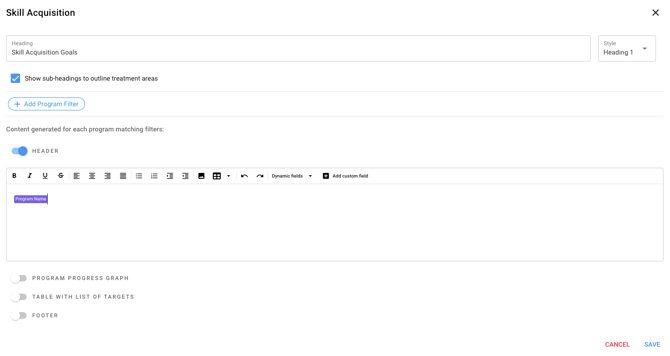
Add tags, filters to ensure the correct programs will pull into this section. Customize the Header text box with details and program data fields as needed.
-
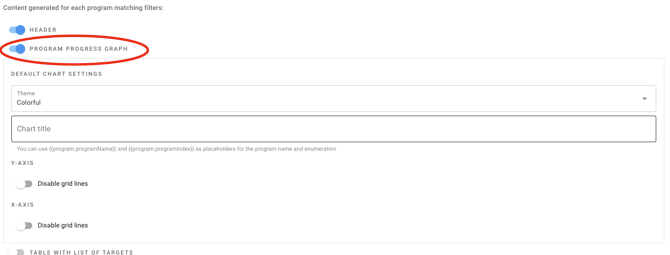
Toggle on Program Progress Graphs as needed. This will pull in program graphs for the programs that match your filters for this section.
-
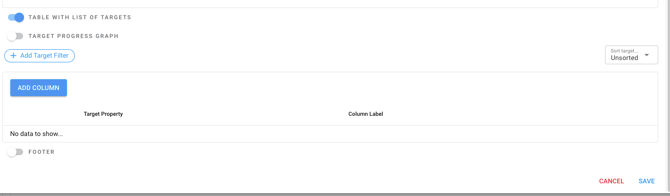
Choose settings for Table with a list of targets Target Progress Graphs and footer where applicable.
- Select Save.
- Once saved, your Treatment Progress section template becomes available in the list of Template Sections and as an option when building a Report Template.
📹 Watch: Create Text Template
Steps to Create Text Template
-
Select Text from the drop down under Add Section Template within the Report Section Templates.
- Give your template a name.
- Give your Text section a Heading
- Add any text, dynamic fields, tables, etc. you would like to serve as guide for your clinicians when completing this section.
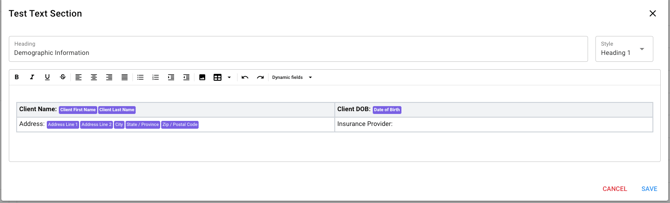
- Select Save.
- Once Saved, your Text section template becomes available in the list of Template Sections and as an option when building a Report Template.
📹 Watch: Custom Insights Chart
Steps to Create Custom Insights Chart Section Template
-
Select Custom Insights Chart from the drop down under Add Section Template within the Report Section Templates.
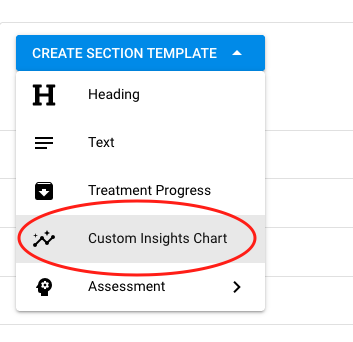
- Give your template a name.
- Add a heading for the custom insights chart.
- Select the desired Custom Insights Chart from the drop down.
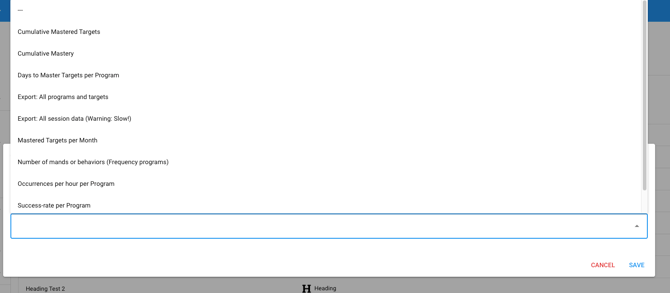
- Select Save.
- Once Saved, your Custom Insights Chart section template becomes available in the list of Template Sections and as an option when building a Report Template.
NOTE: To learn more about Insights Charts in Hi Rasmus CLICK HERE.
Steps to Create Assessment Template
-
Select Assessment from the dropdown menu.
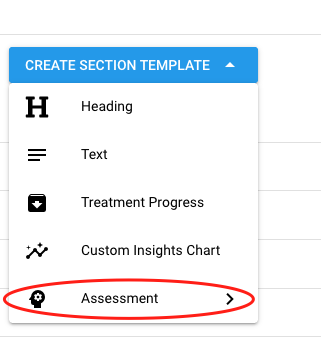
- Select the assessment that you'd like to pull into this section template.
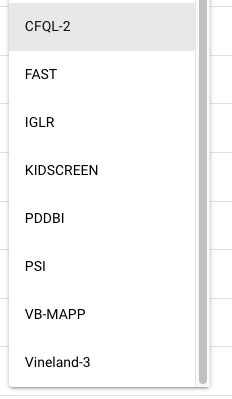
- Give your section template a name and select save.
- Choose the dynamic fields from the Assessment Tool that you want to include in this section. This can include informant information, dates, scores, or images of grids.
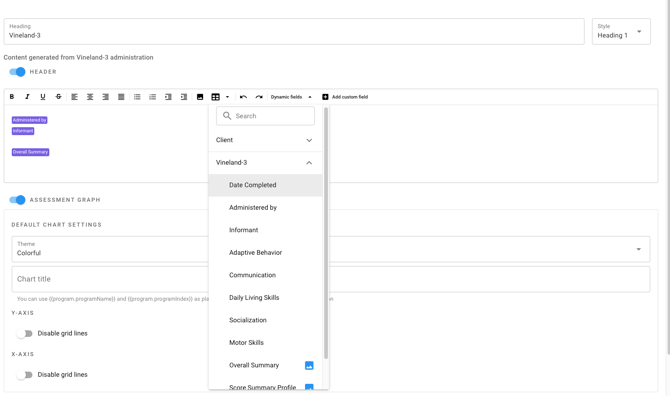
- Select Save
- Once Saved, your Assessment section template becomes available in the list of Template Sections and as an option when building a Report Template
NOTE: If you would like to learn more about our Manual Assessment Entry tool CLICK HERE.
Using Report Section Templates
Once your Report Section Templates are complete, you can now use them to build a custom report that will automatically update with changes made to the section templates!
TIP: Any updates you make to your report section templates will automatically reflect in reports where that template is used, except if the section was manually edited within the report.
- Navigate to Settings-- Templates-- Reports.
- Select Add Report Template and then Blank Template.

- Select Add Section and open the last option for Section Templates.
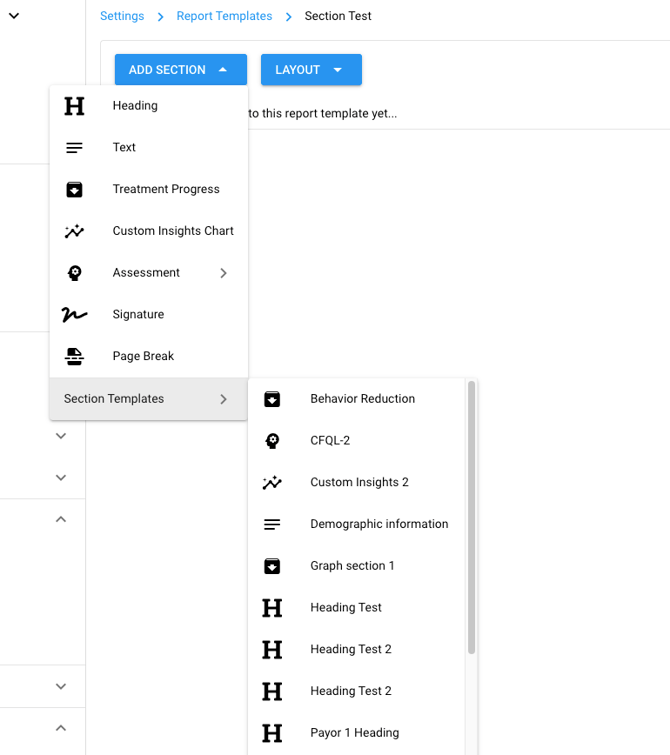
- Select the Section you would like to add to this report template.
- When selected, the section will populate your report template with the settings that it was created with.
- Continue adding sections until your report is complete!
- You can add both section templates and sections straight from the report template itself, such as signature sections.
- Save your Report template. Select Publish when it is ready for use.
⚠️ If you make changes to a section in your report template that was created with a section template, you will get a warning that the section will no longer update when the section template is updated.